Light Cloud + Claude Code: Deploy Your App with AI
One command installs the Light Cloud MCP server in Claude Code. Then you ask, and it deploys. Here is a real session, screen by screen.


To deploy from Claude Code to Light Cloud, run claude mcp add light-cloud -- npx @light-cloud/mcp-server once, open Claude Code in your project, and ask: "Deploy this folder to Light Cloud." Claude finds the framework, uploads the folder and answers with a live URL. My one-page site was deployed 4 seconds after Claude started it, and every change after that took one more sentence.
This is a real session from 26 September 2026, with MCP server 1.5.2: the screenshots are my Claude Code window, with IDs hidden. The result is live: main-hello-claude-examples.light-cloud.io.
What I used
- Claude Code.
- Node.js 20 or later, for
npx. - A folder called
hello-claudewith oneindex.htmlin it.
A Light Cloud account is optional: Claude sets one up if you have none.
Step 1: Install the server
In the project folder:
$ claude mcp add light-cloud -- npx @light-cloud/mcp-server
Added stdio MCP server light-cloud with command: npx @light-cloud/mcp-server to local config
File modified: /Users/you/.claude.json [project: /Users/you/hello-claude]PS> claude mcp add light-cloud -- npx @light-cloud/mcp-server
Added stdio MCP server light-cloud with command: npx @light-cloud/mcp-server to local config
File modified: C:\Users\you\.claude.json [project: C:\Users\you\hello-claude]"Local config" means this project only. Check that Claude Code can reach it:
$ claude mcp list
Checking MCP server health…
light-cloud: npx @light-cloud/mcp-server - ✔ ConnectedPS> claude mcp list
Checking MCP server health…
light-cloud: npx @light-cloud/mcp-server - ✔ ConnectedThe Windows output is the same apart from your own paths. Claude Code asks before each tool call; to stop being asked for the Light Cloud tools, add mcp__light-cloud to the allow list under /permissions.
Step 2: Sign in
Open Claude Code in the folder. The first time Claude needs your account, it opens a Light Cloud page in your browser. Sign in, or create an account there, and click Connect. That is all: no password in the chat, no code to copy.
Step 3: Ask it to deploy
I typed one sentence. This is my Claude Code window after the answer:
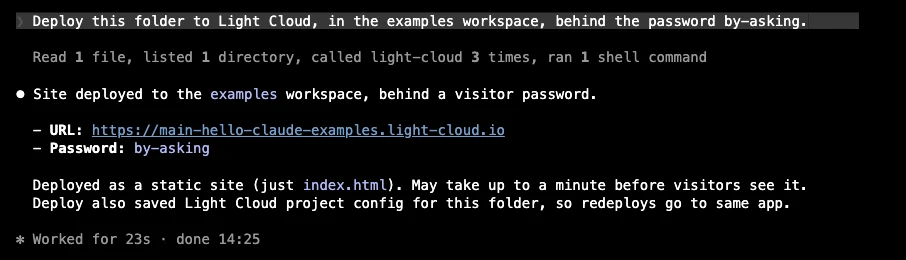
Claude worked for 23 seconds, most of it reading the folder and checking. The deploy itself took 4 seconds. The grey line sums up what it did: it read the folder, called the Light Cloud tools three times, and checked the live site with one command. Claude Code can show each of those calls in full if you want to see them.
The address has the shape <environment>-<app>-<workspace>.light-cloud.io, and it asked every visitor for the password.
Step 4: Change something and redeploy
I added a second line to the page and typed "I changed the page. Redeploy.":
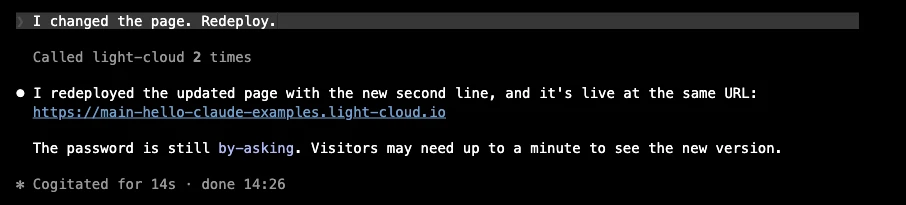
No names or IDs needed: the first deploy linked the folder to the app (see below). A redeploy keeps the password, and visitors see the new version within a minute.
Step 5: Ask what happened
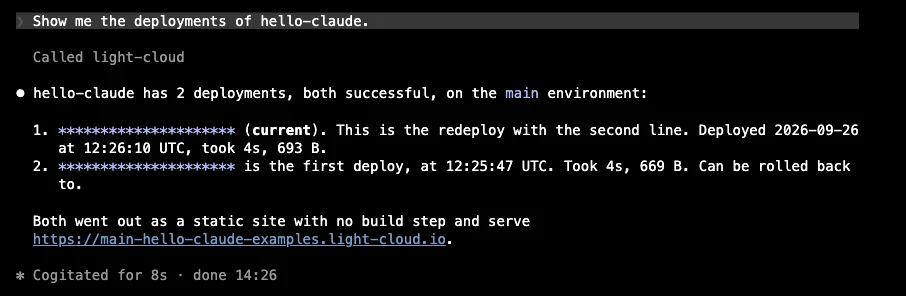
Two deployments, 4 seconds each; I hid the deployment IDs. Behind the scenes, the server marks everything that comes from logs, commit messages or names as data, so text hidden in a log line cannot pass itself off as an instruction to Claude.
Step 6: Make it public

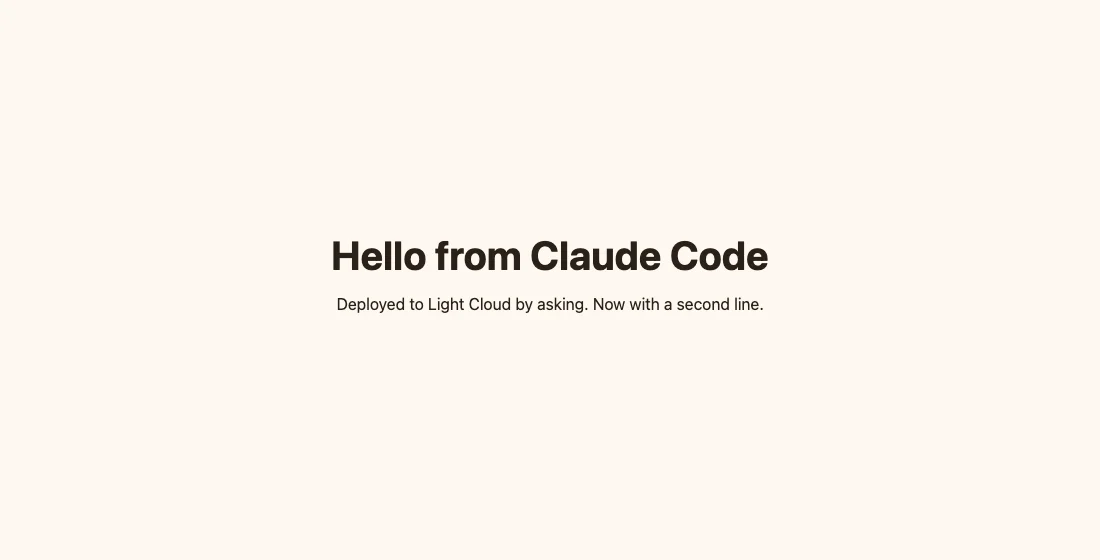
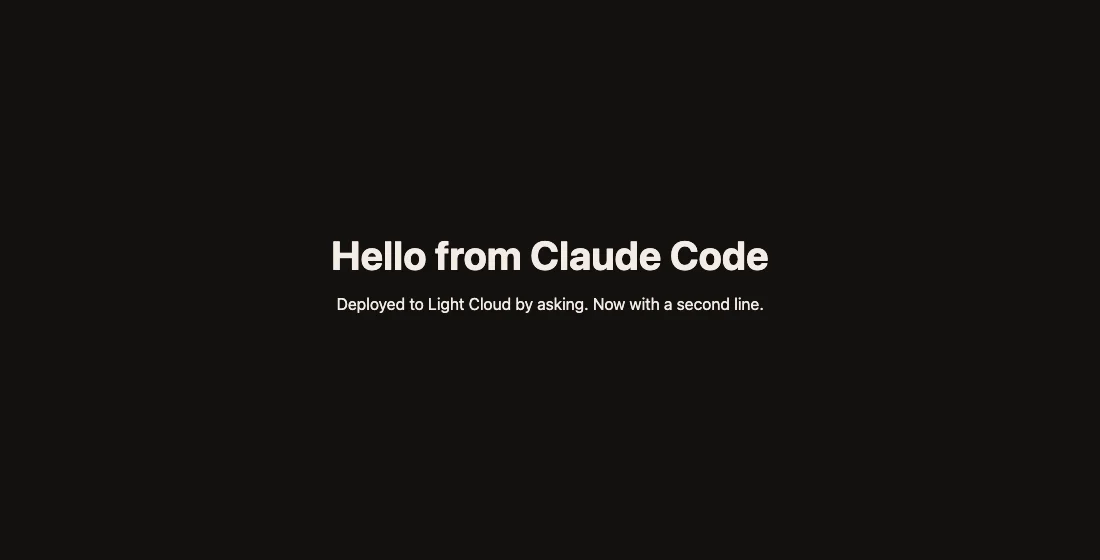
A minute later the page opened for everyone:
The file it leaves behind
The first deploy writes .lightcloud into the folder:
{
  "organisationId": "***********",
  "applicationId": "***********",
  "applicationName": "hello-claude",
  "framework": "html",
  "deploymentType": "static"
}
It links the folder to the app, which is why "Redeploy" needs no names or IDs. It stays on your machine: it is never uploaded with the site.
What else you can ask
The server has a tool for most things you would otherwise click in the console. Some sentences and the tools behind them:
- "Show me the last 100 log lines." (
get-environment-logs) - "Set STRIPE_KEY on production and redeploy." (
set-environment-variables,deploy-environment) - "Add a Postgres database and set DATABASE_URL." (
create-database,get-database-connection-string,set-environment-variables) - "Point shop.example.com at this app." (
add-custom-domain) - "Roll back to the previous deployment." (
rollback-deployment) - "Keep this app always on." (
set-scaling) - "Deploy the main branch of my GitHub repository." (
create-application) - "What is using my included usage this month?" (
get-usage)
When something needs a paid plan, the platform refuses with the name of the plan that includes it, and Claude asks you before changing anything. A card is only ever added on a Stripe page it gives you a link to.
The same from a terminal
If you would rather type commands, the Light Cloud CLI does the same. Install it and sign in:
$ npm install -g @light-cloud/cli
$ lc loginPS> npm install -g @light-cloud/cli
PS> lc loginlc login opens the same kind of page in your browser. Sign in or create an account, and click Connect:
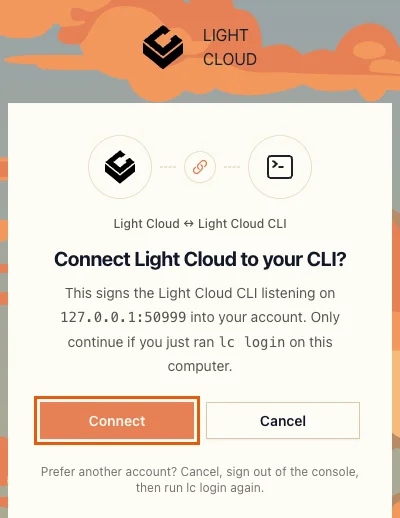
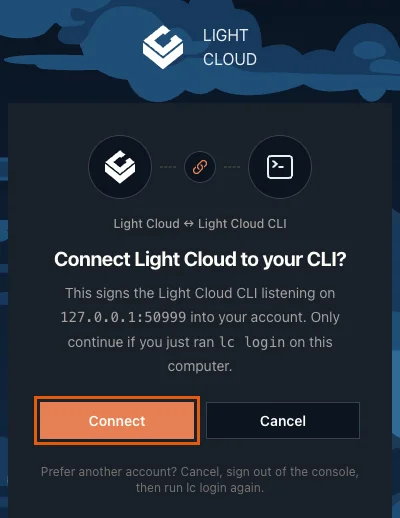
For a folder that is not on Light Cloud yet, run lc init in it. My test folder, hello-terminal, holds one index.html:
$ lc initPS> lc initIt asks a few questions. Pick an answer with the arrow keys and press Enter. The first is the workspace, asked only when you have more than one:
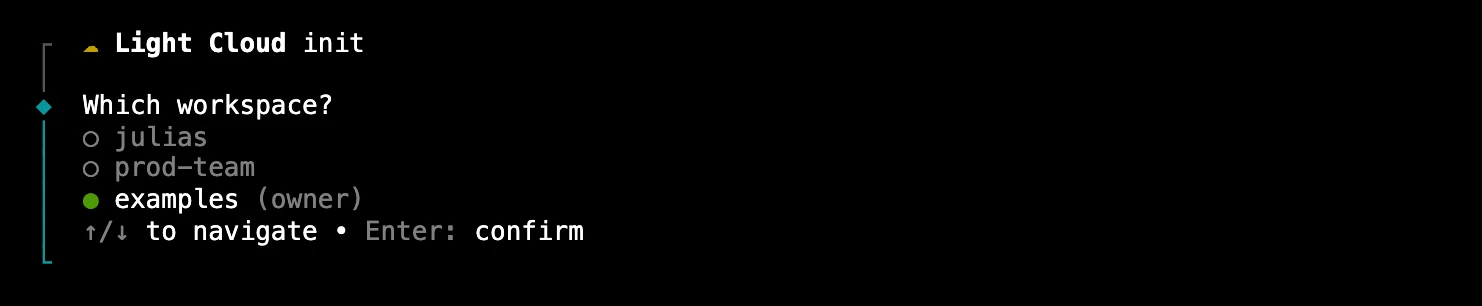
Then it asks whether to keep that workspace as the default, what to do with the folder, what kind of site it is, and the app name, which comes from the folder. After the last answer it uploads the folder and deploys it. This is my finished run; I hid the app ID:
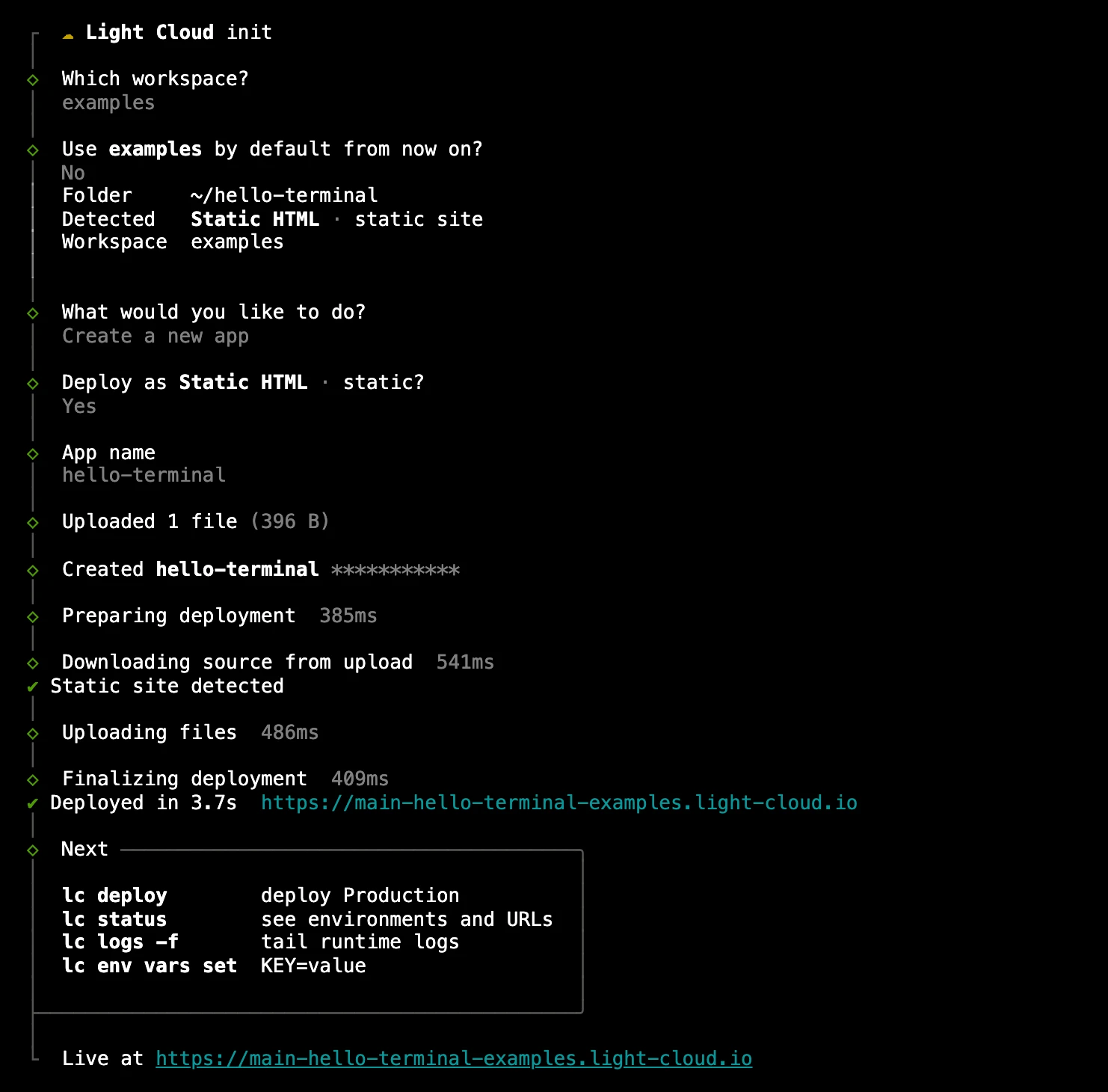
lc init writes the same .lightcloud file as Claude, so from then on lc deploy in that folder sends it again without any questions:
$ lc deployPS> lc deploy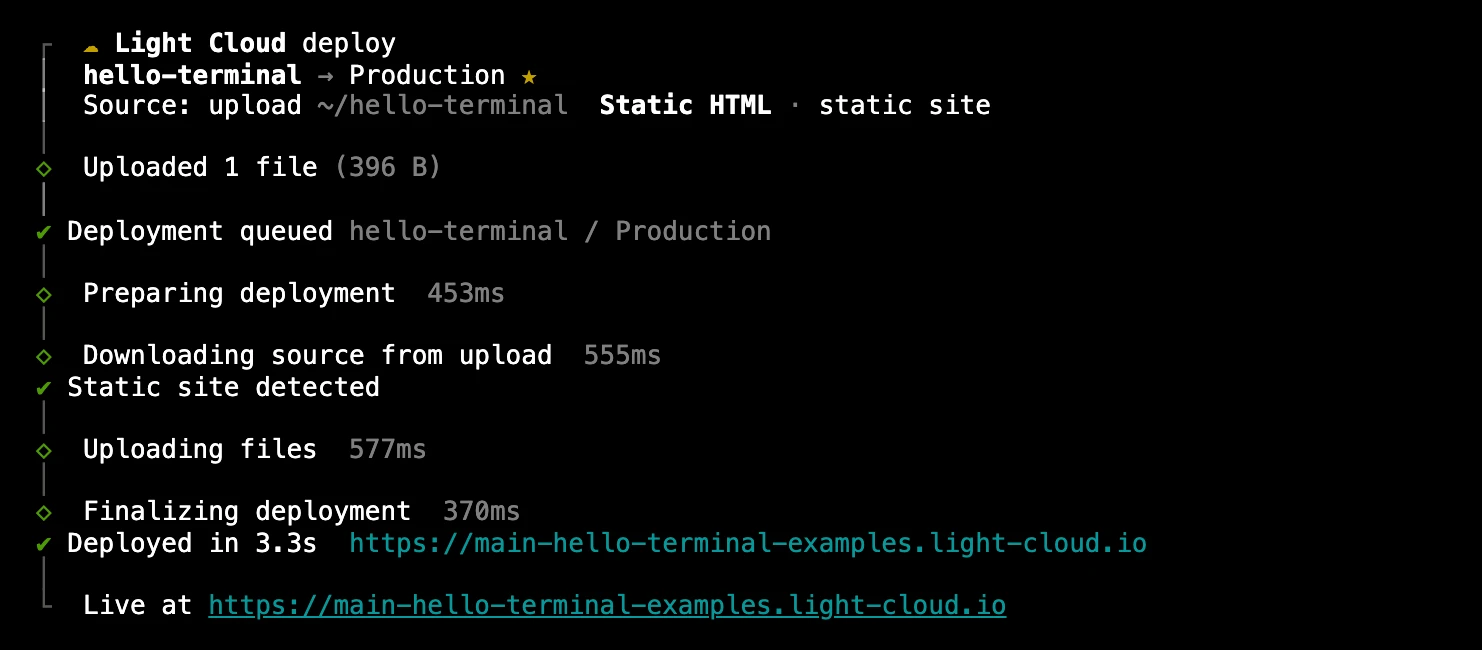
The same goes for a folder Claude deployed: lc deploy in hello-claude redeploys hello-claude. Run lc deploy in a folder with no .lightcloud, and it asks which workspace and which existing app to deploy instead. The full command list is in the CLI docs.
Taking access back
Handing an assistant your account should come with a way to take it back. In the console, Settings, Security, Agents & CLI turns off everything Claude, other MCP clients and the CLI may do, or only some groups, such as deleting or payments. Sign out all agents ends every one of their sessions at once.
FAQ
How do I add Light Cloud to Claude Code?
Run claude mcp add light-cloud -- npx @light-cloud/mcp-server in your project folder, then start Claude Code there. Claude now has tools to deploy, redeploy, read logs, set variables, add databases and more.
Do I need a Light Cloud account first?
No. The first time Claude needs one, it opens a Light Cloud page in your browser where you sign in or create an account, and you click Connect. No password is typed into the chat.
How long does a deploy take?
For my one-page site, 4 seconds for each deploy; Claude took about 20 seconds in total, including reading the folder. Visitors see a new version within a minute, once the edge refreshes.
Can Claude put a password on the site?
Yes. Ask for a password when you deploy, or later. The site then asks every visitor for it, and asking again without a password makes it public.
Is there a terminal version?
Yes, the Light Cloud CLI: npm install -g @light-cloud/cli, then lc login, and lc init in a new folder or lc deploy in a linked one. It uses the same sign-in page and deploys the same way.
