Create a PostgreSQL Database in One Minute and Connect From Your Laptop
Create a managed PostgreSQL database on Light Cloud, connect with psql, load sample data, browse it in the console, and connect from Node.js and Python.



On this pageShowHide
To create a PostgreSQL database on Light Cloud, click New..., New Database in the console and then Create database. A Dev database is ready in about ten seconds. To connect from your laptop, copy the connection string from the Credentials tab, add ?sslmode=require to the end, and pass it to psql.
This is part 1 of a series on databases. Here you create the database, load a small bookshop into it, look at it in the console, and connect from Node.js and Python. Later parts use the same database.
What you will build
A PostgreSQL database named bookshop-db with two tables, authors and books, that you can reach from:
psqlin your terminal,- the Data tab in the console,
- a Node.js script and a Python script.
Source code and sample data: github.com/light-cloud-com/tutorial-database-basics.
Before you start
- A Light Cloud account on the Lite plan or higher: the Free plan has no databases.
- Git and a terminal. On Windows, use PowerShell 7.
- For the last step, Node.js 20 or later and Python 3.10 or later. I used Node.js 22 and Python 3.13.
Step 1: Install psql
psql is the PostgreSQL command-line client. You only need the client, not a PostgreSQL server.
$ brew install libpq
$ echo 'export PATH="/opt/homebrew/opt/libpq/bin:$PATH"' >> ~/.zshrc
$ source ~/.zshrc$ sudo apt install postgresql-clientOn macOS this uses Homebrew. Homebrew does not put libpq on your PATH by itself, hence the second line. On Fedora and other Linux distributions, the package is also called postgresql.
On Windows, run the PostgreSQL installer and select only Command Line Tools. Then add its bin folder, for example C:\Program Files\PostgreSQL\17\bin, to your PATH and open a new PowerShell window.
Check that it works. Any recent version is fine; I used 17.5:
$ psql --version
psql (PostgreSQL) 17.5PS> psql --version
psql (PostgreSQL) 17.5Step 2: Create the database
- In the Light Cloud console, click New... and then New Database.
- Click PostgreSQL.
- Name it
bookshop-dband keep Size at Dev. - Click Create database.
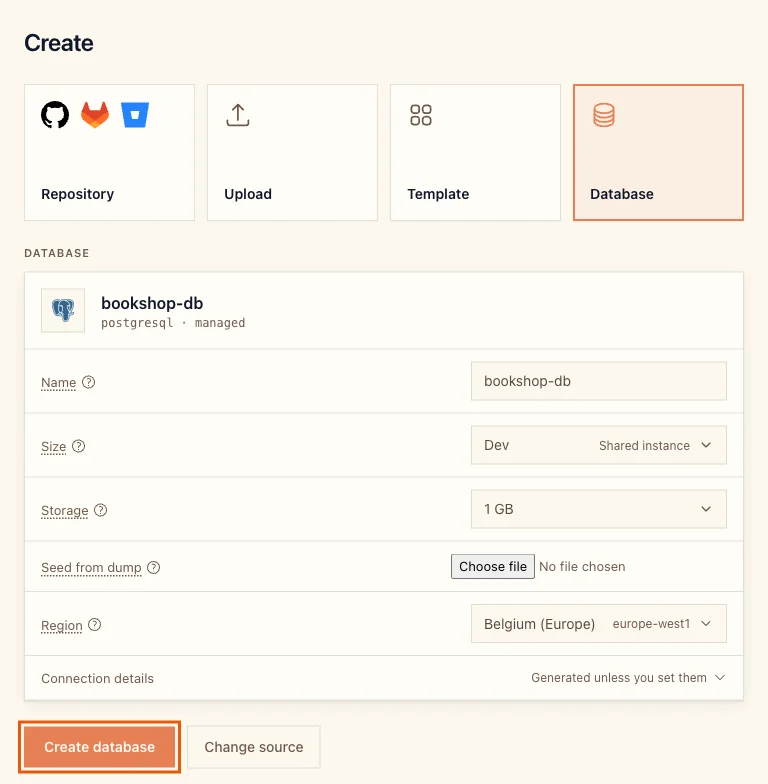
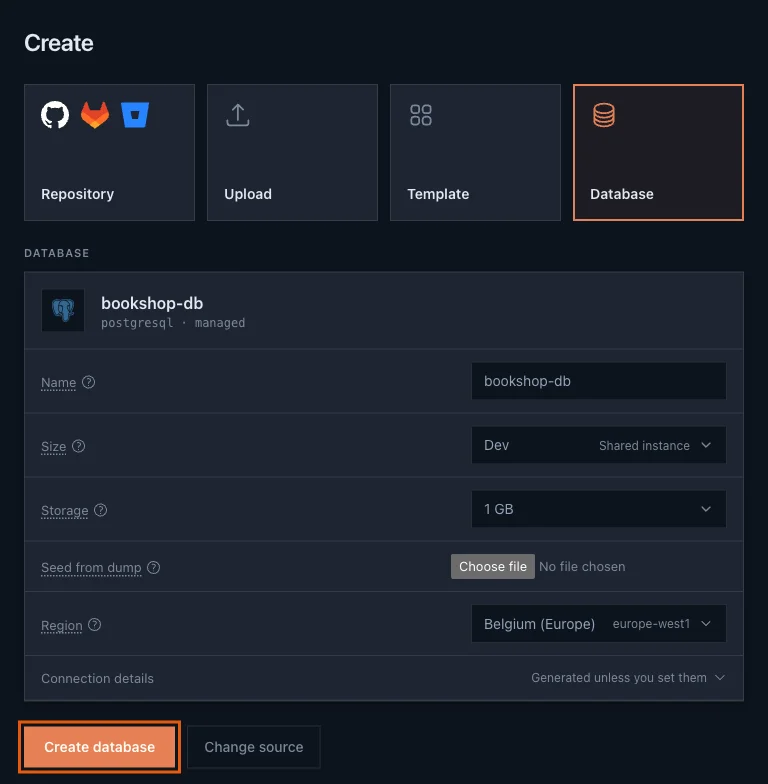
In my run the database was Ready ten seconds later.
Which size to pick:
- Dev runs on a shared instance, is ready in seconds, and allows 10 connections per database user. It is the right choice for development, side projects and these tutorials.
- Starter (0.6 GB RAM) and Pro (1.7 GB RAM) get an instance of their own, take 10 to 20 minutes to create, and need the Starter plan or higher.
Step 3: Copy the connection string
Open the Credentials tab. It shows the host, port, database name, user and password, and the whole connection string. Click Copy next to the connection string:
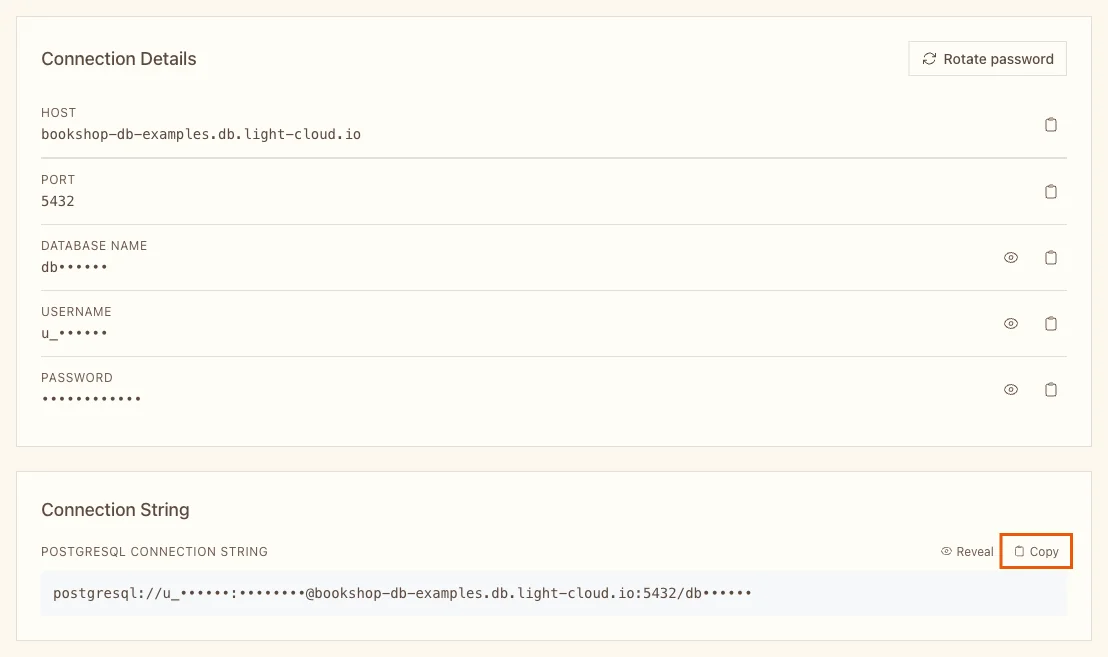
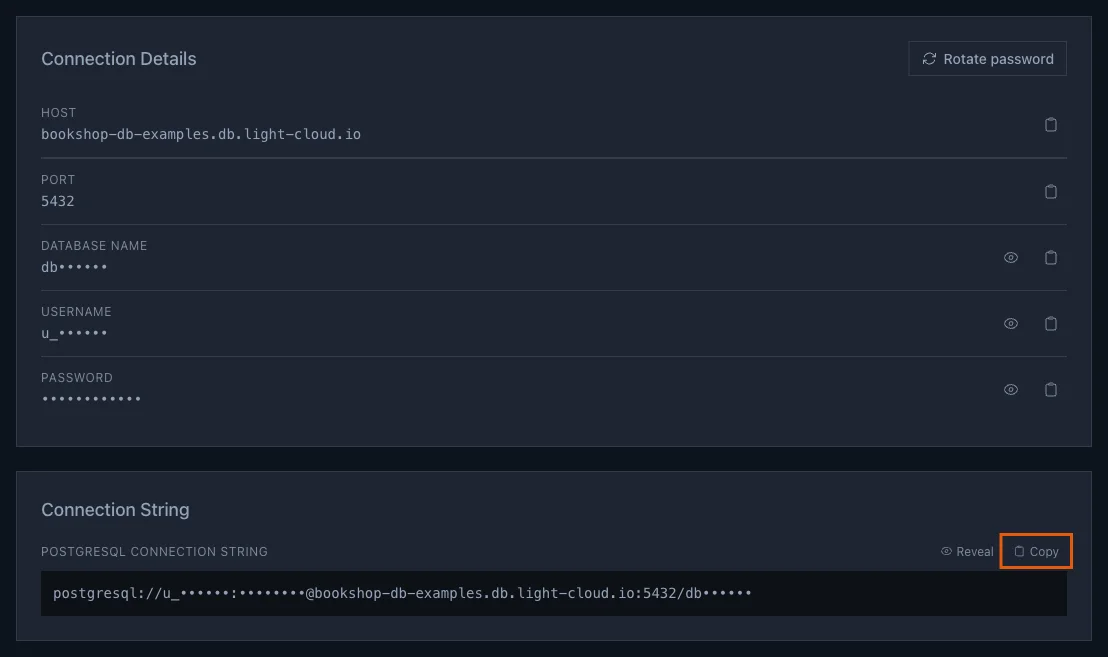
Add ?sslmode=require to the end, and save it as DATABASE_URL in your terminal. The database only accepts encrypted connections, and this setting asks for one. Paste your own string instead of the stars:
$ export DATABASE_URL='postgresql://u_******:********@bookshop-db-yourworkspace.db.light-cloud.io:5432/db******?sslmode=require'PS> $env:DATABASE_URL = 'postgresql://u_******:********@bookshop-db-yourworkspace.db.light-cloud.io:5432/db******?sslmode=require'Keep the single quotes: they stop the shell from changing special characters in the password. The variable lasts until you close the terminal. It contains the password, so keep it out of Git and screenshots.
Step 4: Connect with psql
Check the connection:
$ psql "$DATABASE_URL" -c '\conninfo'
You are connected to database "db******" as user "u_******" on host "bookshop-db-yourworkspace.db.light-cloud.io" (address "***") at port "5432".
SSL connection (protocol: TLSv1.3, cipher: TLS_AES_256_GCM_SHA384, compression: off, ALPN: none)PS> psql "$env:DATABASE_URL" -c '\conninfo'
You are connected to database "db******" as user "u_******" on host "bookshop-db-yourworkspace.db.light-cloud.io" (address "***") at port "5432".
SSL connection (protocol: TLSv1.3, cipher: TLS_AES_256_GCM_SHA384, compression: off, ALPN: none)SSL connection confirms the connection is encrypted. To work interactively, run psql "$DATABASE_URL" (on Windows, psql "$env:DATABASE_URL") without -c, and type \q to leave.
Step 5: Load the sample data
Clone the repository and run its seed.sql against the database:
$ git clone https://github.com/light-cloud-com/tutorial-database-basics.git
Cloning into 'tutorial-database-basics'...
$ cd tutorial-database-basics
$ psql "$DATABASE_URL" -f seed.sql
psql:seed.sql:4: NOTICE:  table "books" does not exist, skipping
DROP TABLE
psql:seed.sql:5: NOTICE:  table "authors" does not exist, skipping
DROP TABLE
CREATE TABLE
CREATE TABLE
INSERT 0 4
INSERT 0 9PS> git clone https://github.com/light-cloud-com/tutorial-database-basics.git
Cloning into 'tutorial-database-basics'...
PS> cd tutorial-database-basics
PS> psql "$env:DATABASE_URL" -f seed.sql
psql:seed.sql:4: NOTICE: table "books" does not exist, skipping
DROP TABLE
psql:seed.sql:5: NOTICE: table "authors" does not exist, skipping
DROP TABLE
CREATE TABLE
CREATE TABLE
INSERT 0 4
INSERT 0 9The two notices are expected on a new database: the script first drops its tables so you can run it again to reset the data. You now have 4 authors and 9 books. Ask for the five oldest:
$ psql "$DATABASE_URL" -c "SELECT title, year FROM books ORDER BY year LIMIT 5;"
           title           | year
---------------------------+------
 Solaris                   | 1961
 The Cyberiad              | 1965
 A Wizard of Earthsea      | 1968
 The Left Hand of Darkness | 1969
 The Dispossessed          | 1974
(5 rows)PS> psql "$env:DATABASE_URL" -c "SELECT title, year FROM books ORDER BY year LIMIT 5;"
title | year
---------------------------+------
Solaris | 1961
The Cyberiad | 1965
A Wizard of Earthsea | 1968
The Left Hand of Darkness | 1969
The Dispossessed | 1974
(5 rows)Step 6: See the data in the console
Back in the console, open the Data tab and click books:
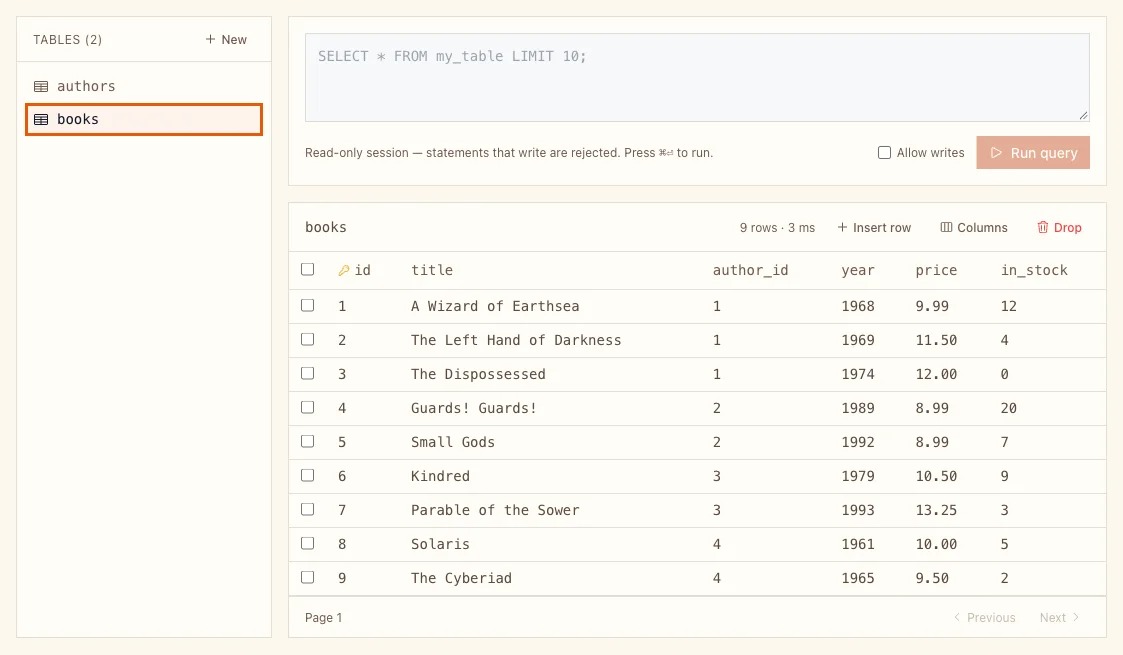
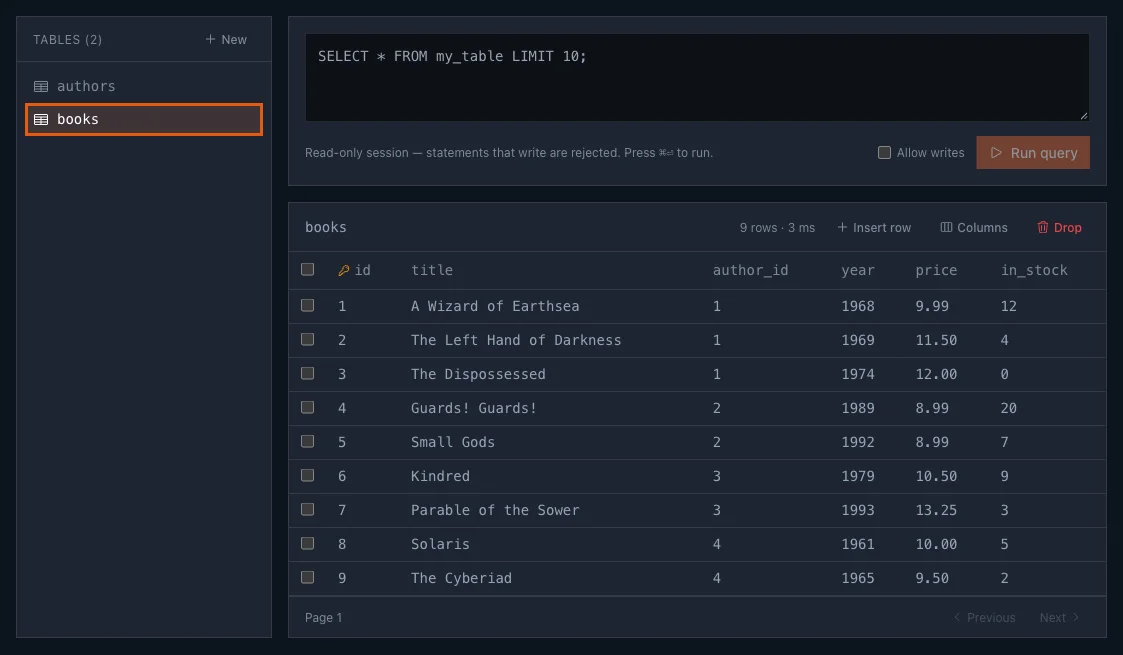
This is the data explorer: every table in the database, its rows, and a SQL box above them. The session is read-only unless you tick Allow writes, so browsing cannot change anything by accident. Part 2 covers editing rows and tables here.
Step 7: Connect from Node.js and Python
The repository has one small script per language. Each connects with DATABASE_URL and counts the books.
Python, with psycopg, uses the string exactly as you saved it:
$ python3 -m venv .venv
$ .venv/bin/pip install -r requirements.txt
$ .venv/bin/python connect/python.py
Connected from Python: 9 booksPS> python -m venv .venv
PS> .venv\Scripts\pip install -r requirements.txt
PS> .venv\Scripts\python connect\python.py
Connected from Python: 9 booksNode.js, with node-postgres, needs one more setting at the end, &uselibpqcompat=true:
$ npm install
$ DATABASE_URL="$DATABASE_URL&uselibpqcompat=true" node connect/node.mjs
Connected from Node.js: 9 booksPS> npm install
PS> $env:DATABASE_URL = "$env:DATABASE_URL&uselibpqcompat=true"
PS> node connect/node.mjs
Connected from Node.js: 9 booksnpm install also prints how many packages it added. On Windows, the variable keeps the Node.js ending from now on, so run the Python script before the Node.js one.
The ending each client needs:
| Client | Add to the connection string |
|---|---|
| psql, Python (psycopg), Prisma, GUI tools | ?sslmode=require |
Node.js (node-postgres, pg) | ?sslmode=require&uselibpqcompat=true |
In node-postgres 8, sslmode=require also checks the server's certificate against the certificate authorities Node.js trusts, and fails. uselibpqcompat=true gives require the meaning it has in every other PostgreSQL client: encrypt, without that check. Only node-postgres knows this setting; the others reject it.
To connect a GUI tool such as TablePlus, DBeaver or pgAdmin, copy the host, port, database name, user and password from the Credentials tab into a new PostgreSQL connection, and set SSL mode to require.
Troubleshooting
pg_hba.conf rejects connection ... no encryption
The client connected without encryption. Add ?sslmode=require to the end of the connection string.
unable to verify the first certificate
node-postgres with ?sslmode=require only. Add &uselibpqcompat=true.
invalid URI query parameter: "uselibpqcompat"
psql or psycopg got the Node.js ending. Remove &uselibpqcompat=true.
psql: command not found
psql is not on your PATH. On macOS, run the echo and source lines from Step 1. On Windows, add the PostgreSQL bin folder to PATH and open a new window.
password authentication failed
The password in the string is wrong or was changed. Copy the connection string again from the Credentials tab.