Run SQL in the Browser: Queries, Joins and Quick Fixes on a Live Database
Query a Light Cloud PostgreSQL database from the console: read-only by default, joins and totals, and a safe way to make a quick fix.



On this pageShowHide
To run SQL on a Light Cloud PostgreSQL database from the browser, open the database's Data tab, type the query in the box above the table, and click Run query. The box is read-only by default, so a stray UPDATE or DELETE is rejected. To change data, tick Allow writes first.
This is part 3 of the database series. It uses the bookshop-db database from part 1 and the reviews table from part 2.
What you will do
- Run a first query with a join and totals.
- Join three tables.
- See a write being rejected, then make a quick fix safely.
Before you start
- The
bookshop-dbdatabase from part 1, with the changes from part 2. - A Light Cloud account on the Lite plan or higher.
Step 1: Run a first query
- In the Light Cloud console, open bookshop-db and its Data tab.
- Click into the box that says
SELECT * FROM my_table LIMIT 10;and paste this query. It shows how many books each author has, and what their stock is worth:
SELECT a.name AS author, count(b.id) AS books, sum(b.price * b.in_stock) AS stock_value
FROM authors a
JOIN books b ON b.author_id = a.id
GROUP BY a.name
ORDER BY stock_value DESC;
- Click Run query, or press Cmd+Enter (Ctrl+Enter on Windows and Linux).
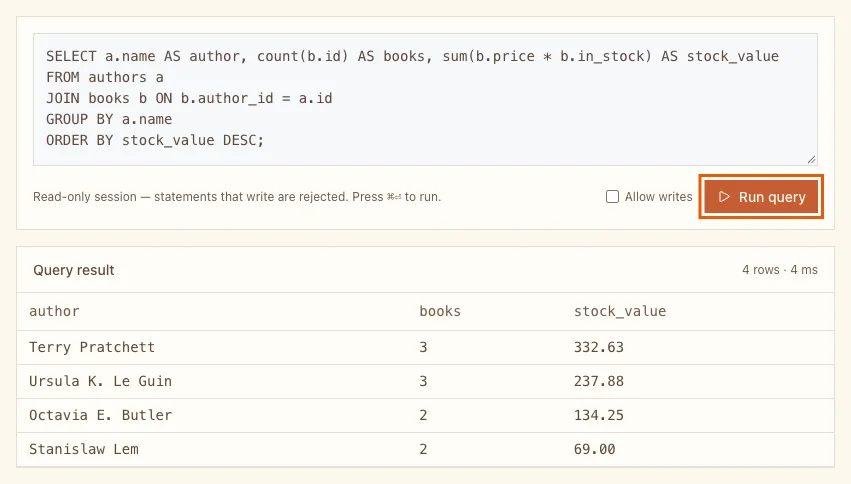
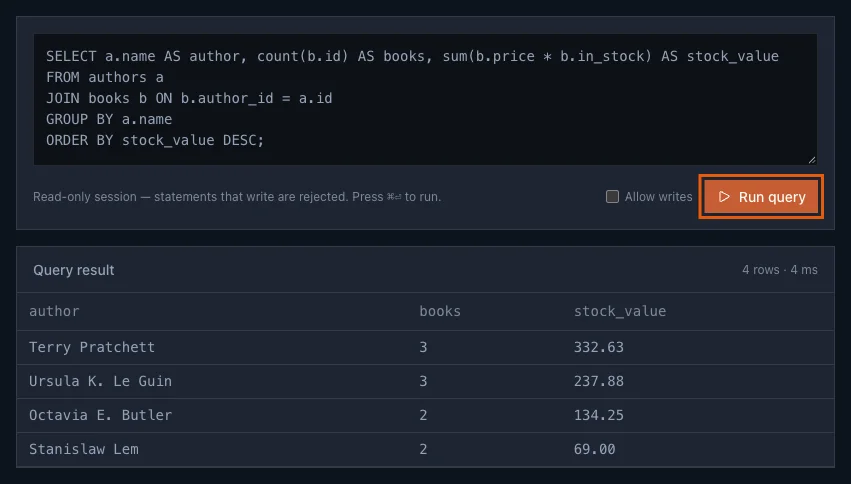
The result appears under Query result, with the number of rows and how long the database took. Terry Pratchett has 3 books because of Mort, the book you added in part 2.
Step 2: Join three tables
Reviews point at books, and books point at authors. To see each review with its book and author, join all three:
SELECT b.title, a.name AS author, r.rating, r.body
FROM reviews r
JOIN books b ON b.id = r.book_id
JOIN authors a ON a.id = b.author_id;
The result has one row: Mort, Terry Pratchett, rating 5, "Funny, kind and about Death."
Queries like this are what the box is best at: quick questions about live data, without setting up a client. Another useful one, the books that are running low:
SELECT title, in_stock
FROM books
WHERE in_stock < 5
ORDER BY in_stock;
It returns The Cyberiad (2), Parable of the Sower (3) and The Left Hand of Darkness (4).
Step 3: Try a write
The shop raises the price of every Terry Pratchett book to 9.49. Paste this and click Run query:
UPDATE books SET price = 9.49
WHERE author_id = 2
RETURNING id, title, price;
It fails:
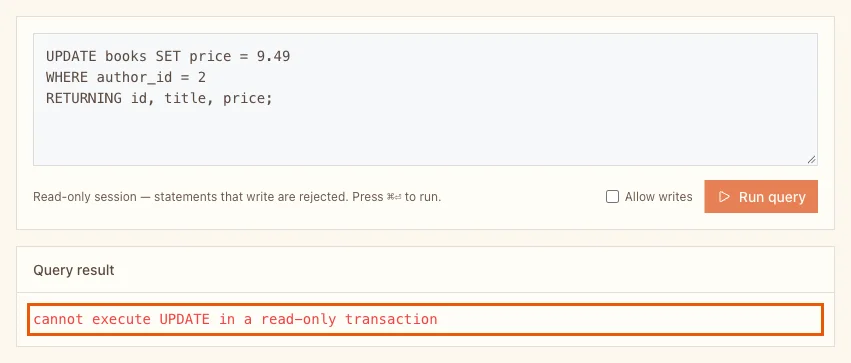
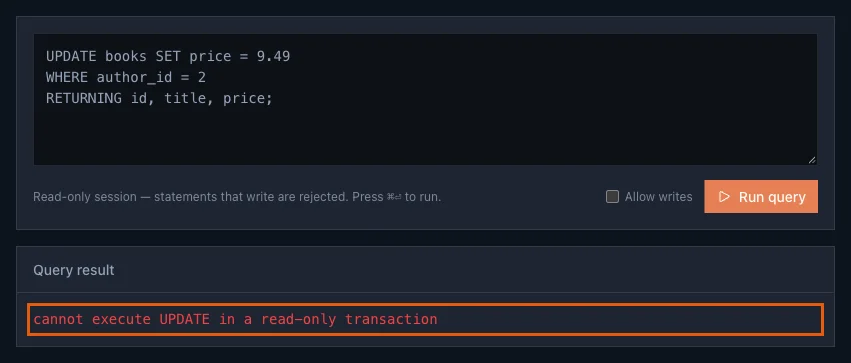
That is the safety net: the note under the box says Read-only session, and every statement that would change data is rejected. Nothing was changed.
Step 4: Make the fix with Allow writes
- Tick Allow writes. The note turns orange: Writes enabled - statements run with full access to this database.
- Click Run query again.
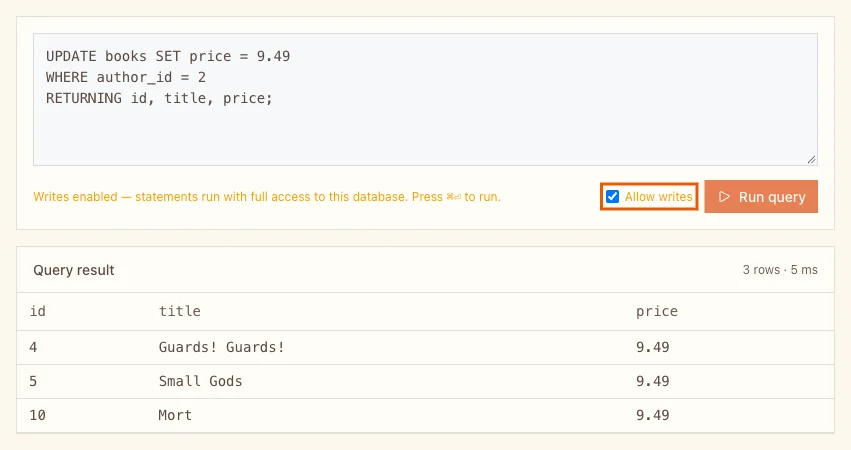
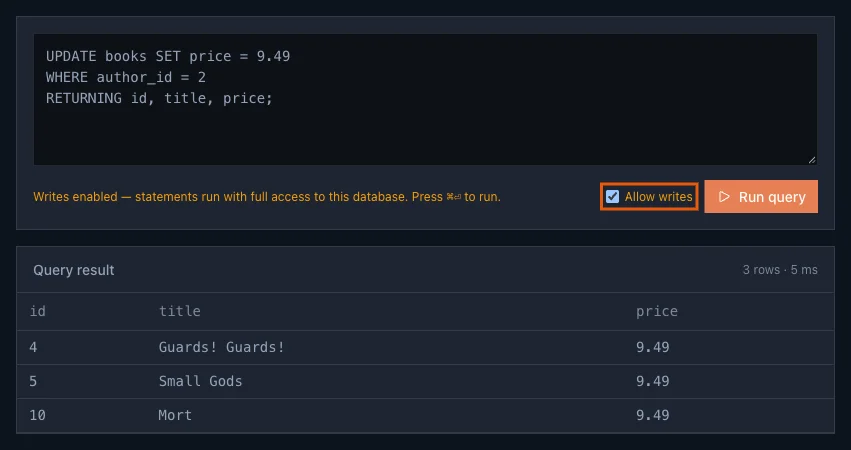
RETURNING id, title, price makes the statement list the rows it changed: three books, each now 9.49. Without RETURNING, the result says 0 rows, even though the update worked, because the statement itself returns no rows.
- Untick Allow writes when you are done, so the next query is read-only again.
Before you write to a production database
A few habits that keep quick fixes quick:
- Run the
SELECTfirst. Write theWHEREclause as aSELECT(SELECT id, title, price FROM books WHERE author_id = 2;), check the rows, then turn it into theUPDATEorDELETE. - Always use
WHERE.UPDATE books SET price = 9.49without it changes every book. - Add
RETURNING. You see exactly what changed. - Back up before big changes. The Backup tab downloads the whole database; part 4 shows how.
- Leave schema changes to migrations.
CREATE,ALTERandDROPbelong in your app's migrations, so every environment gets them. Part 7 covers migrations.
Limits
- A query stops after 10 seconds, with
canceling statement due to statement timeout. - The result shows at most 500 rows, marked truncated - refine the query to see more. Add a
WHEREorLIMIT. - A query can be up to 20,000 characters.
- Several statements separated by semicolons all run; only the last one's result is shown.
For long jobs or large exports, connect with psql as in part 1.
Troubleshooting
cannot execute UPDATE in a read-only transaction
Allow writes is not ticked. The same applies to INSERT, DELETE, CREATE and every other statement that changes something.
canceling statement due to statement timeout
The query ran for more than 10 seconds. Narrow it with WHERE or LIMIT, or run it with psql.
relation "..." does not exist
The table name is misspelt, or the table is in another schema. The table list on the left shows the exact names.