Spring Boot on Light Cloud: JAR, Port and Memory Settings
A Spring Boot 4 API from start.spring.io, built into a JAR by Light Cloud. Plus the JVM setting that tripled my usable memory without changing the plan.



On this pageShowHide
To deploy a Spring Boot app on Light Cloud, generate it with Java 17, push it to GitHub and click Deploy. Light Cloud detects Spring Boot, builds the runnable JAR with your Gradle wrapper (or Maven) and runs java -jar with SERVER_PORT already set, so there is no Dockerfile and no port to configure. Then add one environment variable, JAVA_TOOL_OPTIONS=-XX:MaxRAMPercentage=75, to let the JVM use most of the instance's memory.
In my run that variable raised the maximum heap from 123 MB to 371 MB on a 512 MB instance.
What you will build
A small tasks API with Spring Boot 4: POST /tasks with validation, GET /tasks, the Actuator health check at /actuator/health, and a /runtime endpoint that shows what the JVM got from the container.
Source code: github.com/light-cloud-com/tutorial-spring-boot-api.
Before you start
- A JDK 17 or later, for example Eclipse Temurin. Gradle is not needed: the project brings its own wrapper.
- Git and a GitHub account.
- A free Light Cloud account at console.light-cloud.com with GitHub connected.
- A terminal with curl. On Windows, use PowerShell 7 and
curl.exe, which ships with Windows 10 and 11.
Step 1: Generate the project
start.spring.io makes the project. This command asks it for a Gradle project with Spring Boot 4.1.1, Java 17, and the Web, Actuator and Validation starters:
$ curl -s "https://start.spring.io/starter.zip?type=gradle-project&bootVersion=4.1.1&javaVersion=17&baseDir=tutorial-spring-boot-api&artifactId=tutorial-spring-boot-api&name=tutorial-spring-boot-api&packageName=com.example.api&dependencies=web,actuator,validation" -o starter.zip
$ unzip -q starter.zip
$ cd tutorial-spring-boot-apiPS> curl.exe -s "https://start.spring.io/starter.zip?type=gradle-project&bootVersion=4.1.1&javaVersion=17&baseDir=tutorial-spring-boot-api&artifactId=tutorial-spring-boot-api&name=tutorial-spring-boot-api&packageName=com.example.api&dependencies=web,actuator,validation" -o starter.zip
PS> Expand-Archive starter.zip -DestinationPath .
PS> cd tutorial-spring-boot-apiYou can pick the same options on the website instead. Keep Java at 17: that is the version Light Cloud builds and runs with.
Step 2: Write the API
Two small records and a controller in src/main/java/com/example/api:
package com.example.api;

public record Task(long id, String title, boolean done) {
}
package com.example.api;

import jakarta.validation.constraints.NotBlank;
import jakarta.validation.constraints.Size;

public record NewTask(@NotBlank @Size(max = 200) String title) {
}
package com.example.api;

import java.util.List;
import java.util.Map;
import java.util.concurrent.ConcurrentHashMap;
import java.util.concurrent.atomic.AtomicLong;

import jakarta.validation.Valid;

import org.springframework.http.HttpStatus;
import org.springframework.web.bind.annotation.GetMapping;
import org.springframework.web.bind.annotation.PathVariable;
import org.springframework.web.bind.annotation.PostMapping;
import org.springframework.web.bind.annotation.RequestBody;
import org.springframework.web.bind.annotation.ResponseStatus;
import org.springframework.web.bind.annotation.RestController;
import org.springframework.web.server.ResponseStatusException;

@RestController
public class TaskController {

	// In memory, so the list starts empty after every restart.
	private final Map<Long, Task> tasks = new ConcurrentHashMap<>();
	private final AtomicLong nextId = new AtomicLong(1);

	@GetMapping("/tasks")
	public List<Task> list() {
		return tasks.values().stream().sorted((a, b) -> Long.compare(a.id(), b.id())).toList();
	}

	@GetMapping("/tasks/{id}")
	public Task get(@PathVariable long id) {
		Task task = tasks.get(id);
		if (task == null) {
			throw new ResponseStatusException(HttpStatus.NOT_FOUND, "Task not found");
		}
		return task;
	}

	@PostMapping("/tasks")
	@ResponseStatus(HttpStatus.CREATED)
	public Task create(@Valid @RequestBody NewTask body) {
		Task task = new Task(nextId.getAndIncrement(), body.title(), false);
		tasks.put(task.id(), task);
		return task;
	}

	// Shows what the JVM got from the container: useful when tuning memory.
	@GetMapping("/runtime")
	public Map<String, Object> runtime() {
		Runtime rt = Runtime.getRuntime();
		return Map.of(
				"java", Runtime.version().toString(),
				"processors", rt.availableProcessors(),
				"maxHeapMb", rt.maxMemory() / (1024 * 1024));
	}
}
And three settings:
spring.application.name=tutorial-spring-boot-api

# Light Cloud sets SERVER_PORT for you. Do not hard-code server.port here.

# Only the health endpoint is public; /actuator/health answers {"status":"UP"}.
management.endpoints.web.exposure.include=health

# Stop taking new requests and finish the running ones on shutdown.
server.shutdown=graceful
The port line is a comment on purpose. Spring Boot reads the SERVER_PORT environment variable, and Light Cloud sets it to the app's port. A server.port in this file would win over it and the deploy would never become healthy.
Step 3: Build and run it
$ ./gradlew build -x test
BUILD SUCCESSFUL in 3s
$ java -jar build/libs/tutorial-spring-boot-api-0.0.1-SNAPSHOT.jar
Tomcat started on port 8080 (http) with context path '/'
Started TutorialSpringBootApiApplication in 1.441 seconds (process running for 1.78)PS> .\gradlew.bat build -x test
BUILD SUCCESSFUL in 3s
PS> java -jar build\libs\tutorial-spring-boot-api-0.0.1-SNAPSHOT.jar
Tomcat started on port 8080 (http) with context path '/'
Started TutorialSpringBootApiApplication in 1.441 seconds (process running for 1.78)Output is trimmed; the first build also downloads Gradle and the dependencies. The build makes two JARs; the one without -plain is the runnable one, and it is also the one Light Cloud picks. From a second terminal:
$ curl http://localhost:8080/actuator/health
{"groups":["liveness","readiness"],"status":"UP"}
$ curl -X POST http://localhost:8080/tasks -H "content-type: application/json" -d '{"title":"Deploy the Spring Boot API"}'
{"id":1,"title":"Deploy the Spring Boot API","done":false}
$ curl -X POST http://localhost:8080/tasks -H "content-type: application/json" -d '{"title":""}'
{"timestamp":"2026-09-25T12:10:47.165Z","status":400,"error":"Bad Request","path":"/tasks"}PS> curl.exe http://localhost:8080/actuator/health
{"groups":["liveness","readiness"],"status":"UP"}
PS> curl.exe -X POST http://localhost:8080/tasks -H "content-type: application/json" -d '{"title":"Deploy the Spring Boot API"}'
{"id":1,"title":"Deploy the Spring Boot API","done":false}
PS> curl.exe -X POST http://localhost:8080/tasks -H "content-type: application/json" -d '{"title":""}'
{"timestamp":"2026-09-25T12:10:47.165Z","status":400,"error":"Bad Request","path":"/tasks"}Stop the app with Ctrl+C.
Step 4: Push it to GitHub
The generated .gitignore already keeps build and .gradle out:
$ git init -b main
$ git add -A
$ git commit -m "Spring Boot tasks API"
# Create an empty repository named tutorial-spring-boot-api on github.com/new first.
$ git remote add origin https://github.com/YOUR-USERNAME/tutorial-spring-boot-api.git
$ git push -u origin main
To https://github.com/YOUR-USERNAME/tutorial-spring-boot-api.git
 * [new branch]      main -> main
branch 'main' set up to track 'origin/main'.PS> git init -b main
PS> git add -A
PS> git commit -m "Spring Boot tasks API"
# Create an empty repository named tutorial-spring-boot-api on github.com/new first.
PS> git remote add origin https://github.com/YOUR-USERNAME/tutorial-spring-boot-api.git
PS> git push -u origin main
To https://github.com/YOUR-USERNAME/tutorial-spring-boot-api.git
* [new branch] main -> main
branch 'main' set up to track 'origin/main'.Commit the gradlew script and the gradle/wrapper folder: the build uses them to fetch the exact Gradle version the project was made with.
Step 5: Deploy it
- In the Light Cloud console, click New..., then Deploy from GitHub, and pick
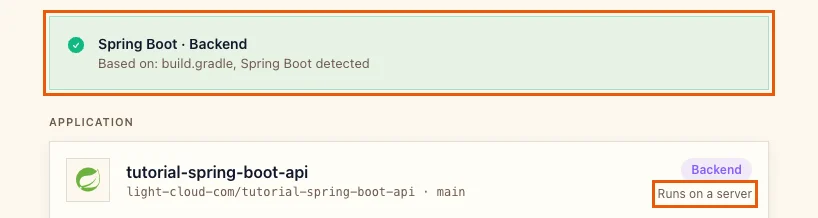
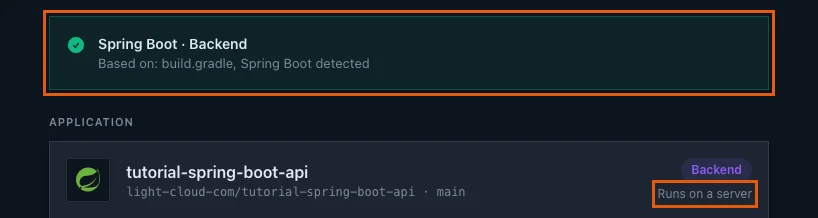
tutorial-spring-boot-api. Light Cloud shows Spring Boot / Backend, based onbuild.gradle, and Runs on a server:
- Leave Port at
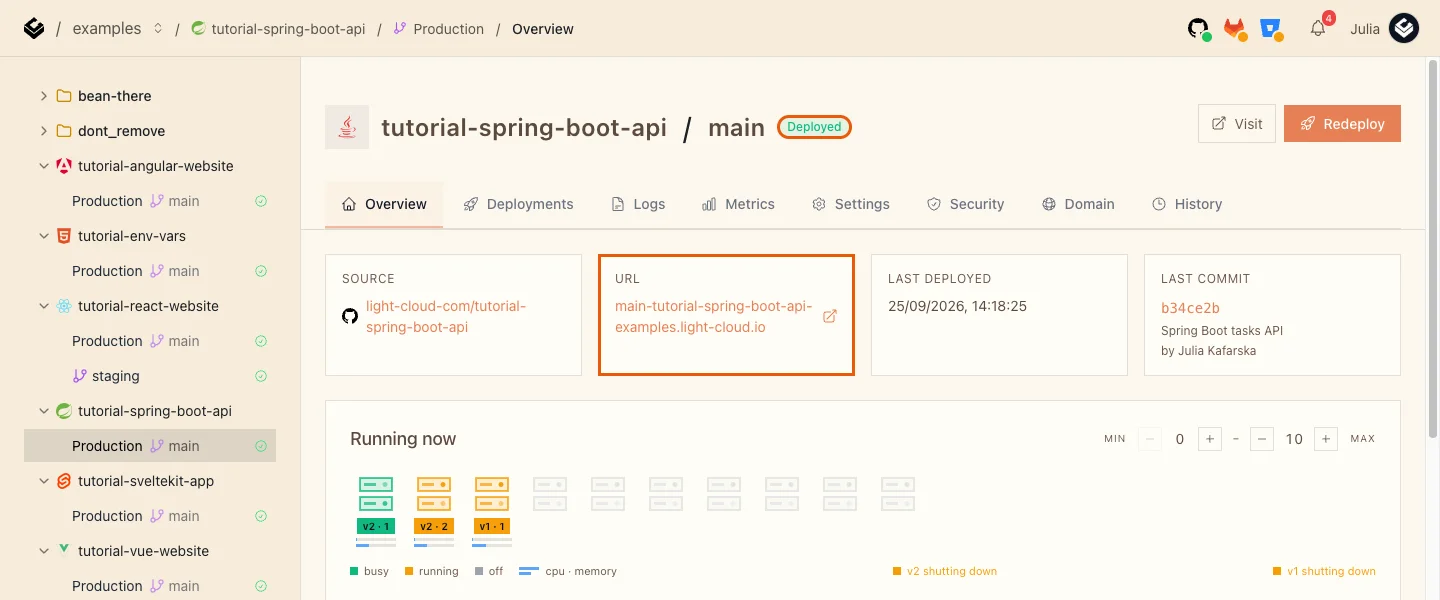
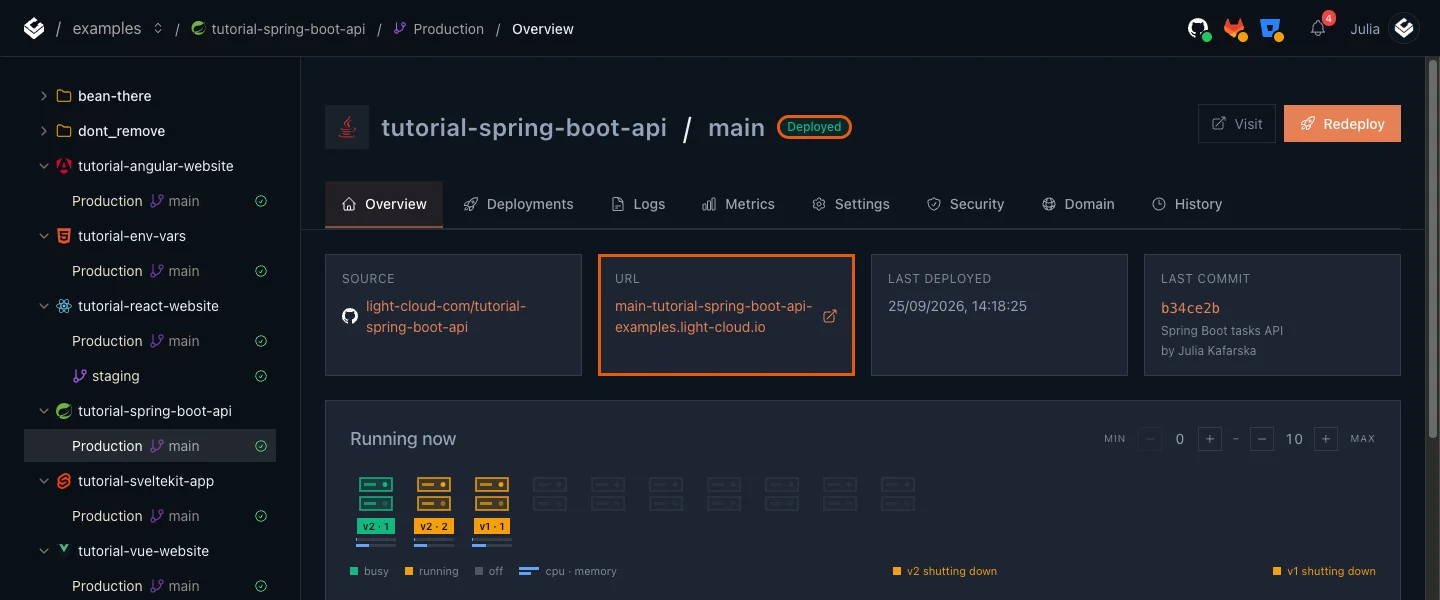
8080and click Deploy. The first deploy took about 3 minutes in my run: Gradle downloads itself and every dependency before it compiles.
- Check it:
$ curl https://main-tutorial-spring-boot-api-yourworkspace.light-cloud.io/actuator/health
{"groups":["liveness","readiness"],"status":"UP"}
$ curl https://main-tutorial-spring-boot-api-yourworkspace.light-cloud.io/runtime
{"maxHeapMb":123,"java":"17.0.20+8","processors":2}PS> curl.exe https://main-tutorial-spring-boot-api-yourworkspace.light-cloud.io/actuator/health
{"groups":["liveness","readiness"],"status":"UP"}
PS> curl.exe https://main-tutorial-spring-boot-api-yourworkspace.light-cloud.io/runtime
{"maxHeapMb":123,"java":"17.0.20+8","processors":2}Step 6: Give the JVM its memory
maxHeapMb is 123 on an instance with 512 MB. Inside a container the JVM reserves only a quarter of the memory for the heap by default. The rest sits unused unless you raise the share.
- Open Production, Settings, and click Edit next to Environment Variables.
- Add
JAVA_TOOL_OPTIONSwith the value-XX:MaxRAMPercentage=75, and click Save.
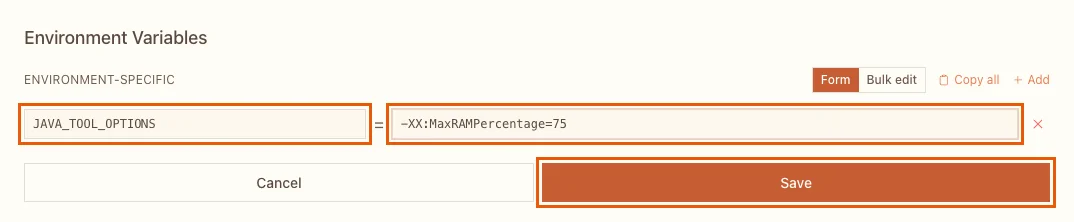
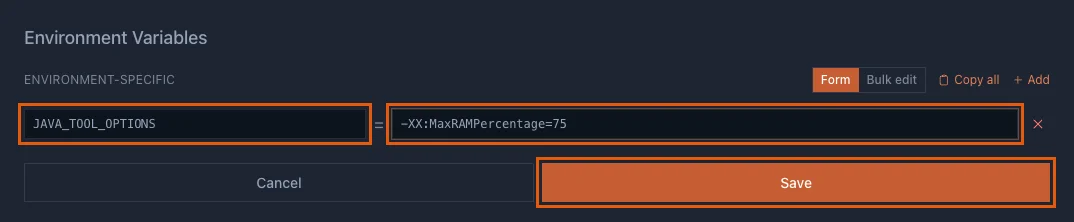
The JVM reads JAVA_TOOL_OPTIONS by itself; nothing in the project changes. After the redeploy:
$ curl https://main-tutorial-spring-boot-api-yourworkspace.light-cloud.io/runtime
{"java":"17.0.20+8","maxHeapMb":371,"processors":2}PS> curl.exe https://main-tutorial-spring-boot-api-yourworkspace.light-cloud.io/runtime
{"java":"17.0.20+8","maxHeapMb":371,"processors":2}371 MB instead of 123 MB, on the same plan. The Logs tab confirms it at start-up with the line Picked up JAVA_TOOL_OPTIONS: -XX:MaxRAMPercentage=75. Leave the remaining quarter for the JVM's own needs: threads, loaded classes and the JIT compiler also use memory, outside the heap.
How long does it take to start?
From the logs, a new instance reached Spring's Started line about 7 seconds after it started. Spring itself reported 5.1 to 5.6 seconds; the rest is the JVM booting. For comparison, a Go API was ready in 0.27 seconds on the same platform.
With Min instances at 0 the first request after a quiet period waits for that. If that matters, set Min instances to 1 in the environment's Settings, at the cost of an instance that always runs.
Troubleshooting
The deploy never becomes healthy
Check application.properties for server.port. A fixed port wins over SERVER_PORT, so the app listens somewhere Light Cloud does not look.
The build fails when the project asks for Java 21 or newer
The build has JDK 17. If the project asks for a newer Java (JavaLanguageVersion.of(21) in build.gradle, or java.version in pom.xml), the build cannot compile it. Set it to 17 and push again.
More tutorials


A Go (Gin) API Deployed in Five Steps
Deploy a Go API built with Gin to Light Cloud without a Dockerfile: go.mod and main.go at the root, PORT from the environment, GIN_MODE=release, JSON logs with a severity, and a quarter-second cold start.
 Julia
Julia

Deploy a NestJS API with a Database Connection
Deploy a NestJS API with PostgreSQL on Light Cloud: PORT from the environment, a pg pool sized for serverless, request validation, a health check that tests the database, and why the start script should run node dist/main.
Julia

A Flask App in Production, Without Writing a Dockerfile
Deploy a Flask app to Light Cloud without a Dockerfile: app.py, templates and static files, gunicorn started for you on the right port, the Python version from .python-version, and settings from environment variables.
Julia