Rotate a Database Password With Only Seconds of Downtime
Change the password of a Light Cloud PostgreSQL database that a live app is using, in the order that cut my errors from almost two minutes to seven seconds.



On this pageShowHide
To rotate the password of a Light Cloud PostgreSQL database that a live app uses, choose the new password yourself, put it into the app's DATABASE_URL first, and click Rotate password with Set my own the moment the app's new deployment is live. In my test that caused 7 seconds of errors. Rotating first and updating the app afterwards caused almost two minutes.
This is part 6 of the database series. It uses the bookshop-db database from part 1 and a small API that reads from it.
What you will do
- Deploy a small API that uses the database.
- Choose a new password and build the new
DATABASE_URL. - Save it on the app, then rotate the password when the deploy is live.
Why the order matters
A database has one password. Rotating it changes it at once: the old password stops working for new connections, and apps with the old one fail until they are updated. Updating an app's DATABASE_URL redeploys it, which took about a minute in my runs.
I measured both orders with a request to the API's /health every half second:
| Order | Failed requests | Errors for |
|---|---|---|
Rotate first, then update DATABASE_URL | 145 | 107 seconds |
Update DATABASE_URL first, rotate when the deploy is live | 10 | 7 seconds |
The second order works because the old deployment keeps serving with the old password until the new one takes over. The only gap is between the new deployment going live and your click on Rotate password. The errors were all password authentication failed, answered by the API with a 503.
Before you start
- The
bookshop-dbdatabase from part 1. - An app that uses it. To follow along, deploy the
appfolder of the repository from GitHub, as in the Express guide: set Root directory toapp, name itbookshop-api, and addDATABASE_URLwith the connection string plus?sslmode=require&uselibpqcompat=true. Its/healthchecks the database. - A Light Cloud account on the Lite plan or higher.
Step 1: Choose the new password
Generate a random password of letters and digits. Those need no escaping in a connection string:
$ openssl rand -hex 16# Run this in Git Bash, which comes with Git for Windows.
$ openssl rand -hex 16It prints 32 random characters; yours will differ. Keep the password somewhere safe, such as your password manager.
Then write the new connection string: take the current one from the database's Credentials tab and replace only the password, the part between : and @:
postgresql://u_******:NEW_PASSWORD@bookshop-db-yourworkspace.db.light-cloud.io:5432/db******?sslmode=require&uselibpqcompat=true
Step 2: Save it on the app first
- Open bookshop-api, Production, Settings.
- Click Edit next to Environment Variables.
- Replace the value of
DATABASE_URLwith the new connection string and click Save.
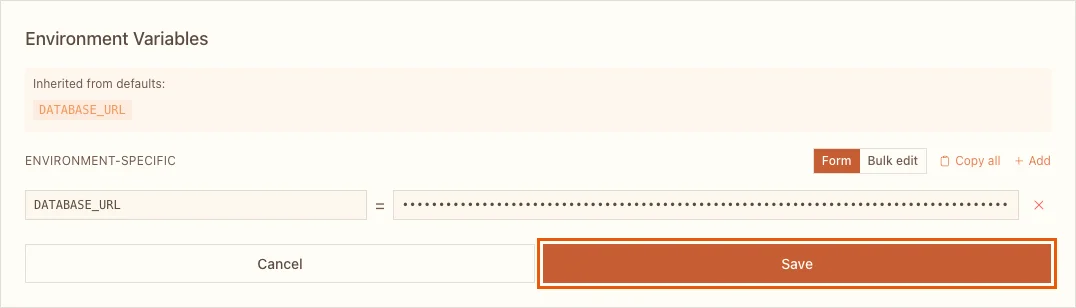
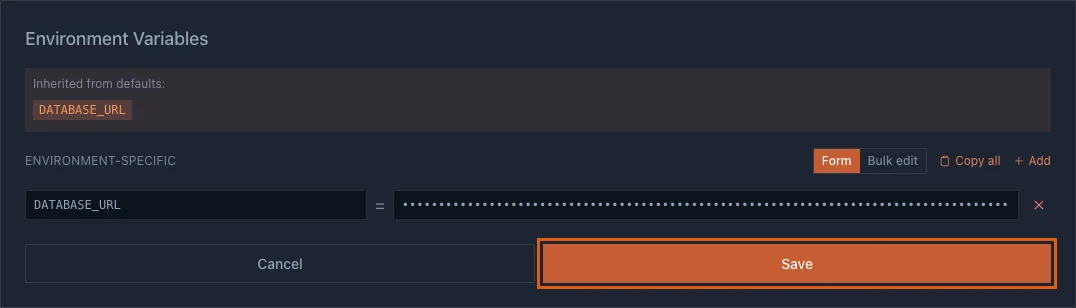
Saving starts a new deployment. The app keeps running on the old deployment, with the old password, which still works.
Step 3: Get the rotation ready
While the app deploys, open bookshop-db, Credentials in a second browser tab and click Rotate password:
- Choose Set my own.
- Paste the password from Step 1.
- Do not click Rotate password yet.
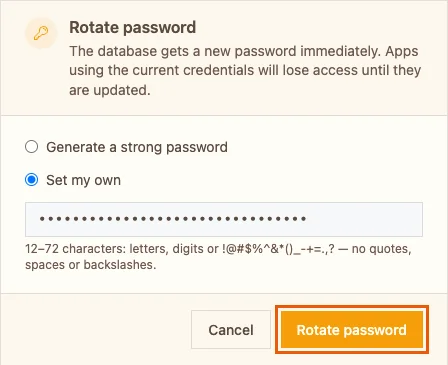
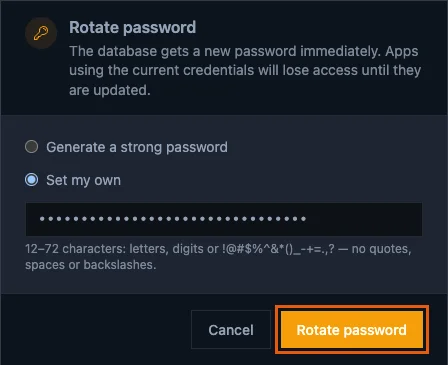
The window warns: Apps using the current credentials will lose access until they are updated. Your app is already updated, it just is not live yet.
Step 4: Rotate when the deploy is live
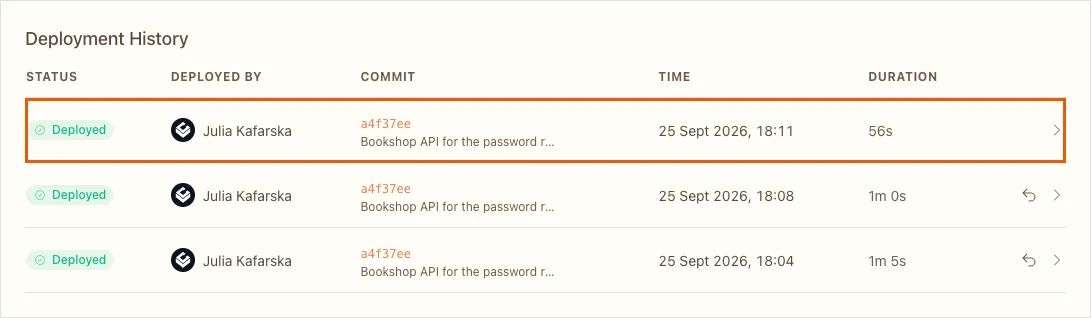
Go back to the app tab and open Deployments. When the new deployment at the top says Deployed, switch tabs and click Rotate password:
The console confirms: Password updated - connected apps need the new credentials. Check the app:
$ curl https://main-bookshop-api-yourworkspace.light-cloud.io/health
{"status":"ok","database":"ok"}PS> curl.exe https://main-bookshop-api-yourworkspace.light-cloud.io/health
{"status":"ok","database":"ok"}My deploy took 56 seconds. The new deployment started failing a few seconds before I saw Deployed, and recovered the moment I rotated: 7 seconds of errors in total.
Step 5: Update everything else
The old password no longer works anywhere. Update every other place that has it:
- other apps and environments that use the same database, such as preview environments,
- your laptop's
DATABASE_URLfrom part 1, - GUI tools like TablePlus or DBeaver,
- scheduled jobs, such as the
pg_dumpbackup from part 4.
If one of them uses the database a lot, rotate during a quiet hour.
The quick way
If a minute or two of errors is acceptable, for example on a staging database, click Rotate password and keep Generate a strong password. Then copy the new connection string from Credentials and update DATABASE_URL on every app. The console shows the new password right away.
Troubleshooting
password authentication failed for user "u_..."
The app still has the old password. Check that you saved the new DATABASE_URL on the right environment, and that its deployment has finished.
The new password was rejected
It must be 12 to 72 characters: letters, digits or !@#$%^&*()_-+=.,?, with no quotes, spaces or backslashes. Some of those characters also need encoding in a connection string (for example @ as %40), which is why Step 1 uses letters and digits only.
The app broke before I rotated
You rotated too late: the new deployment went live with the new password while the database still had the old one. Click Rotate password now; the app recovers at once.