Add a PostgreSQL Database to a Node.js App on Light Cloud
Create a PostgreSQL database, connect an Express API to it with node-postgres, and save your first note, in about 15 minutes.



On this pageShowHide
To add a PostgreSQL database to a Node.js app on Light Cloud, create the database in the console, copy its connection string, add ?sslmode=require&uselibpqcompat=true to the end, and give it to the app as the environment variable DATABASE_URL. The app connects with node-postgres and one line of code.
What you will build
An Express notes API that stores its data in PostgreSQL on Light Cloud:
POST /notessaves a note.GET /noteslists them, newest first.GET /healthalso checks the database, so a broken connection shows up at once.
Source code: github.com/light-cloud-com/tutorial-nodejs-api-postgres. It builds on the API from put a Node.js Express API online.
Before you start
- Node.js 20 or later; I used Node.js 22.
- A Light Cloud account on the Lite plan or higher: the Free plan has no databases.
- Git, a GitHub account, and a terminal with curl. On Windows, use PowerShell 7 and
curl.exe.
Step 1: Create the database
- In the Light Cloud console, click New..., New Database, PostgreSQL.
- Name it
notes-db, keep Size at Dev (a shared instance), and click Create database. It is ready in a few seconds. - Open the Credentials tab and click Copy under Connection String:


Step 2: Add the SSL ending
Paste the string somewhere safe and add ?sslmode=require&uselibpqcompat=true to the end. With your own user, password and database name where the stars are, it looks like this:
postgresql://u_******:********@notes-db-yourworkspace.db.light-cloud.io:5432/db******?sslmode=require&uselibpqcompat=true
This is your DATABASE_URL. The ending tells node-postgres to encrypt the connection, which the database requires. Keep the string private: it contains the password.
Step 3: Connect from Node.js
Install the PostgreSQL driver, node-postgres:
$ npm install pgPS> npm install pgI got pg 8.23.0. In server.js, create one pool for the whole app, and use it in the routes:
import pg from "pg";

// DATABASE_URL comes from Light Cloud, with
// ?sslmode=require&uselibpqcompat=true at the end.
// max: 3 keeps the pool small: every running instance opens its own.
const pool = new pg.Pool({ connectionString: process.env.DATABASE_URL, max: 3 });

app.get("/health", async (req, res, next) => {
  try {
    await pool.query("SELECT 1");
    res.json({ status: "ok", database: "ok" });
  } catch (err) {
    next(err);
  }
});

app.get("/notes", async (req, res, next) => {
  try {
    const { rows } = await pool.query("SELECT id, text, created_at FROM notes ORDER BY id DESC LIMIT 50");
    res.json(rows);
  } catch (err) {
    next(err);
  }
});

app.post("/notes", async (req, res, next) => {
  const text = typeof req.body?.text === "string" ? req.body.text.trim() : "";
  if (!text || text.length > 500) {
    return res.status(400).json({ error: "Send {\"text\": \"...\"} with 1 to 500 characters." });
  }
  try {
    const { rows } = await pool.query(
      "INSERT INTO notes (text) VALUES ($1) RETURNING id, text, created_at",
      [text]
    );
    res.status(201).json(rows[0]);
  } catch (err) {
    next(err);
  }
});

// Create the table on start. A real project would use migrations.
await pool.query(`
  CREATE TABLE IF NOT EXISTS notes (
    id SERIAL PRIMARY KEY,
    text TEXT NOT NULL,
    created_at TIMESTAMPTZ NOT NULL DEFAULT now()
  )`).catch((err) => log("ERROR", `database not ready: ${err.message}`));
The complete file, with the JSON logging and graceful shutdown from the Express guide, is in the repository. $1 is a query parameter: node-postgres sends the value separately, so a note can never change the SQL.
Step 4: Deploy with DATABASE_URL
- Push the project to GitHub and deploy it as in the Express guide.
- Open Production, Settings, and click Edit next to Environment Variables.
- Add
DATABASE_URLwith the string from Step 2 as its value, and click Save.
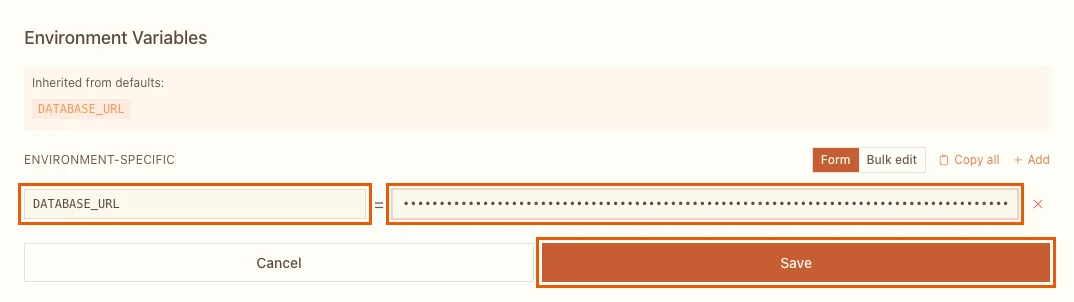
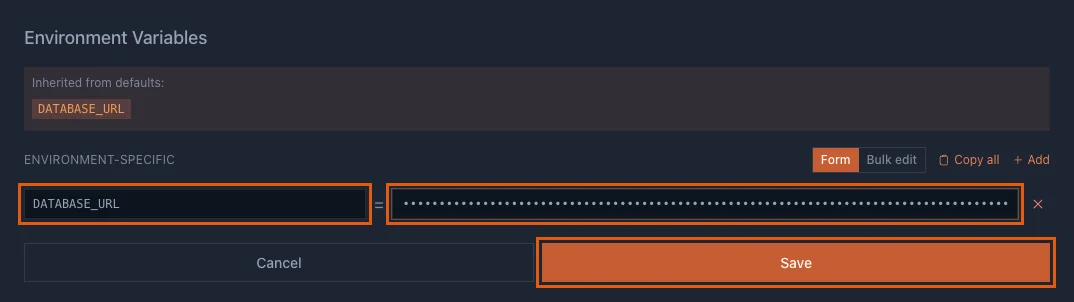
Saving redeploys the app with the new value; in my run it was working 69 seconds later.
Step 5: Save a note
Check the database connection, then save and read a note:
$ curl https://main-tutorial-nodejs-api-postgres-yourworkspace.light-cloud.io/health
{"status":"ok","database":"ok"}
$ curl -X POST https://main-tutorial-nodejs-api-postgres-yourworkspace.light-cloud.io/notes -H "content-type: application/json" -d '{"text":"Stored in PostgreSQL on Light Cloud"}'
{"id":2,"text":"Stored in PostgreSQL on Light Cloud","created_at":"2026-09-25T14:34:05.885Z"}PS> curl.exe https://main-tutorial-nodejs-api-postgres-yourworkspace.light-cloud.io/health
{"status":"ok","database":"ok"}
PS> curl.exe -X POST https://main-tutorial-nodejs-api-postgres-yourworkspace.light-cloud.io/notes -H "content-type: application/json" -d '{"text":"Stored in PostgreSQL on Light Cloud"}'
{"id":2,"text":"Stored in PostgreSQL on Light Cloud","created_at":"2026-09-25T14:34:05.885Z"}My note got id 2 because I had saved one from the laptop first; yours starts at 1. GET /notes lists it, and it stays there across redeploys, because it lives in the database, not in the app.
How many connections?
Every running instance of the app opens its own pool. With max: 3 and the Dev database's limit of 10 connections per user, three instances use 9 and leave one for you. If the app scales further, lower max or cap Max instances in the environment's Settings. Autoscaling microservices shows what happens when the limit is reached.
Troubleshooting
If /health answers 500, open the Logs tab and search for the error:
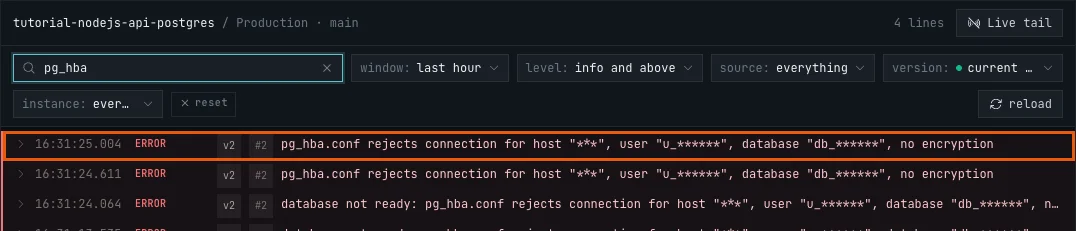
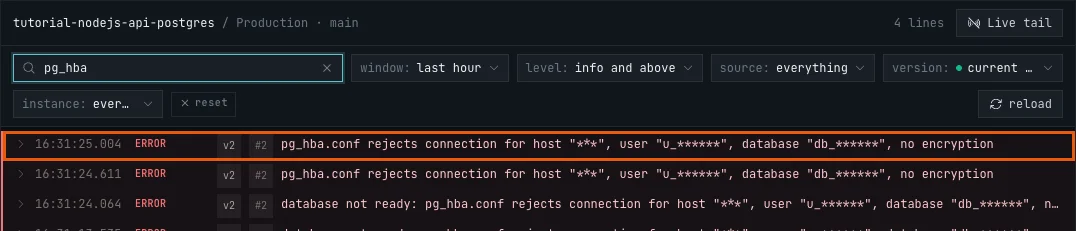
pg_hba.conf rejects connection ... no encryption
DATABASE_URL has no SSL setting, so node-postgres did not encrypt the connection. Add ?sslmode=require&uselibpqcompat=true to the end.
unable to verify the first certificate
DATABASE_URL ends with ?sslmode=require only. Add &uselibpqcompat=true. The repository's scripts/check-ssl.mjs tries your string with each ending, if you want to see the difference.
Errors about too many connections
The database user ran out of connections. Lower the pool's max, lower Max instances, or close tools you left connected.
The connection string already has a question mark
Then add the settings with & instead: ...?existing=value&sslmode=require&uselibpqcompat=true.
More tutorials


Microservices Part 1: Deploy a Frontend, Two APIs and a Database
Deploy a React frontend, a Node.js API, a Python FastAPI API and PostgreSQL from one GitHub monorepo on Light Cloud, step by step, with every screen shown.
 Julia
Julia

Deploy a NestJS API with a Database Connection
Deploy a NestJS API with PostgreSQL on Light Cloud: PORT from the environment, a pg pool sized for serverless, request validation, a health check that tests the database, and why the start script should run node dist/main.
Julia

Put a Node.js Express API Online: Port, Environment Variables and Logs
Deploy an Express 5 API on Light Cloud without a Dockerfile: listen on PORT, read settings from environment variables, write JSON logs with a severity, and find every request in the Logs tab.
Julia