Microservices Part 5: Preview a Branch and Roll Back
Part 5 of Microservices on Light Cloud. Preview a change on its own URLs before it reaches production, merge it, and roll back a bad deploy in seconds.



On this pageShowHide
To ship a change to one microservice without breaking the others on Light Cloud, push it to a Git branch: Light Cloud deploys the branch to its own URLs, posts the preview links on your pull request, and after the merge redeploys only the services the change touched. If a bad deploy still reaches production, Rollback on the Deployments tab serves an earlier build again; in my test the service was fixed in 13 seconds.
This is Part 5 of the series, on the Bean There shop from Part 1. Deploy every branch and Remove stale environments were switched on when the apps were created, which is the default.
What you will build
- A feature, "stock status" ("in stock", "low", "sold out"), that changes catalog-api and the web app.
- A full preview of the feature on branch URLs, wired so the preview shop talks to the preview APIs.
- A merged pull request, and then a deliberate bug in production that you roll back and revert.
Source code: github.com/light-cloud-com/tutorial-microservices, tag part-5.
Before you start
- Bean There from Parts 1 to 4, deployed from your fork.
- Git and a terminal with curl (on Windows,
curl.exein PowerShell 7).
Step 1: Push a feature branch
Create a branch and change catalog-api so /products also returns a stock_status:
$ git checkout -b feature/stock-status
Switched to a new branch 'feature/stock-status'PS> git checkout -b feature/stock-status
Switched to a new branch 'feature/stock-status'app.get("/products", async (req, res) => {
const { rows } = await db.query(
`SELECT *, CASE WHEN stock = 0 THEN 'sold out' WHEN stock < 10 THEN 'low' ELSE 'in stock' END AS stock_status
FROM products ORDER BY id`
);
Commit and push the branch:
$ git commit -am "catalog-api: add stock_status to /products"
$ git push -u origin feature/stock-statusPS> git commit -am "catalog-api: add stock_status to /products"
PS> git push -u origin feature/stock-statusAbout a minute later each app has a second environment next to Production, named after the branch and deployed from it:
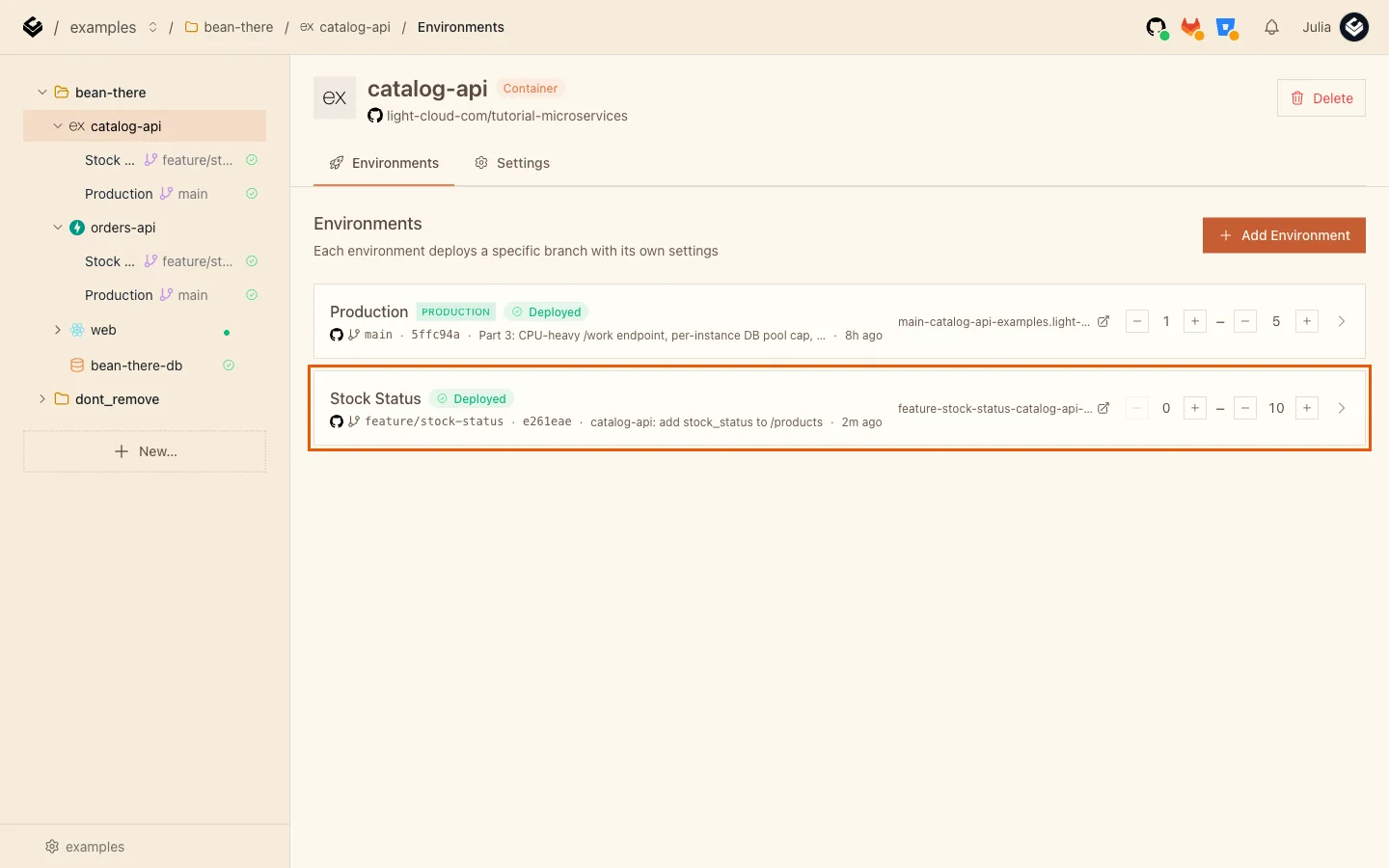
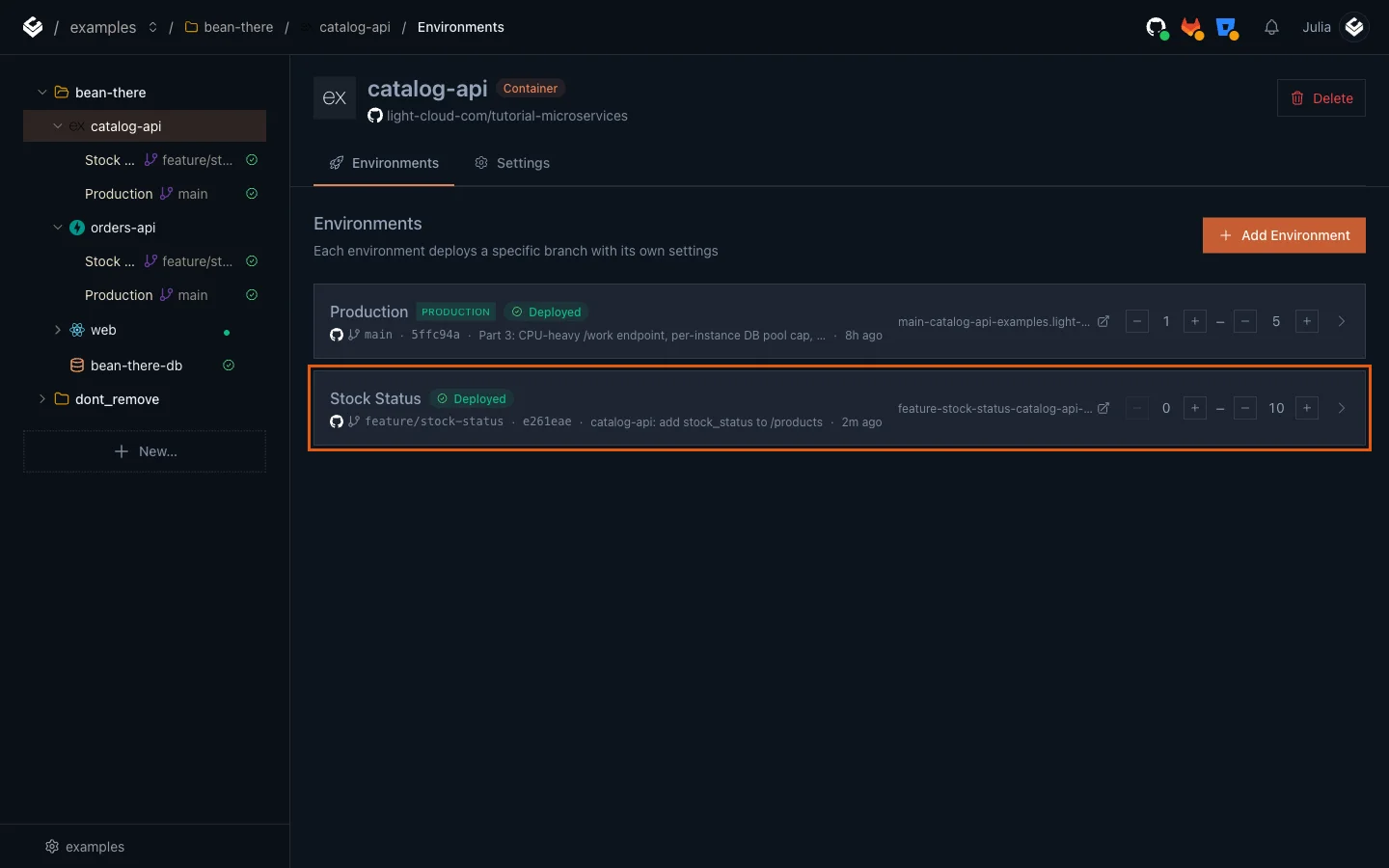
Notice that all three apps got a branch environment, even though only catalog-api/ changed. A new branch creates an environment for every app on the repository; after that, pushes only redeploy the apps whose folder changed.
Step 2: Test the changed service on its own URL
A branch environment's address is the branch name (with / turned into -), the app name and your workspace. Open the branch and production side by side in your browser:
https://feature-stock-status-catalog-api-yourworkspace.light-cloud.io/productshttps://main-catalog-api-yourworkspace.light-cloud.io/products
The first product on the branch:
{"id":1,"name":"Espresso beans, 1 kg","price_cents":2400,"stock":39,"stock_status":"in stock"}
The same product in production:
{"id":1,"name":"Espresso beans, 1 kg","price_cents":2400,"stock":39}
The branch has the new field; production does not. Your stock numbers will differ.
Step 3: Know what a preview is connected to
A branch environment starts with the app's default variables, the ones you entered when you created the app. For Bean There that means:
- The branch catalog-api uses the production database. Stock it reserves is real stock.
- The branch orders-api calls the production catalog-api.
- The branch web app calls the production APIs, so it does not show your change at all.
For a change to one API that you test with curl, that is fine. To click through the whole feature, point the preview services at each other.
Step 4: Wire a full preview
First, show the status in the shop. Still on the branch, the web app displays stock_status when the API sends it:
<span className={`stock ${product.stock_status === "low" ? "low" : ""}`}>
  {product.stock_status ? `${product.stock_status} (${product.stock})` : `${product.stock} in stock`}
</span>
Commit and push; only the branch web app redeploys. Then set these variables in each Stock Status environment (open the app, Stock Status, Settings, Environment Variables, Edit, then Save):
| App | Variable | Value |
|---|---|---|
| web | VITE_CATALOG_API_URL | https://feature-stock-status-catalog-api-yourworkspace.light-cloud.io |
| web | VITE_ORDERS_API_URL | https://feature-stock-status-orders-api-yourworkspace.light-cloud.io |
| catalog-api | WEB_ORIGIN | https://feature-stock-status-web-yourworkspace.light-cloud.io |
| orders-api | WEB_ORIGIN | https://feature-stock-status-web-yourworkspace.light-cloud.io |
| orders-api | CATALOG_API_URL | https://feature-stock-status-catalog-api-yourworkspace.light-cloud.io |
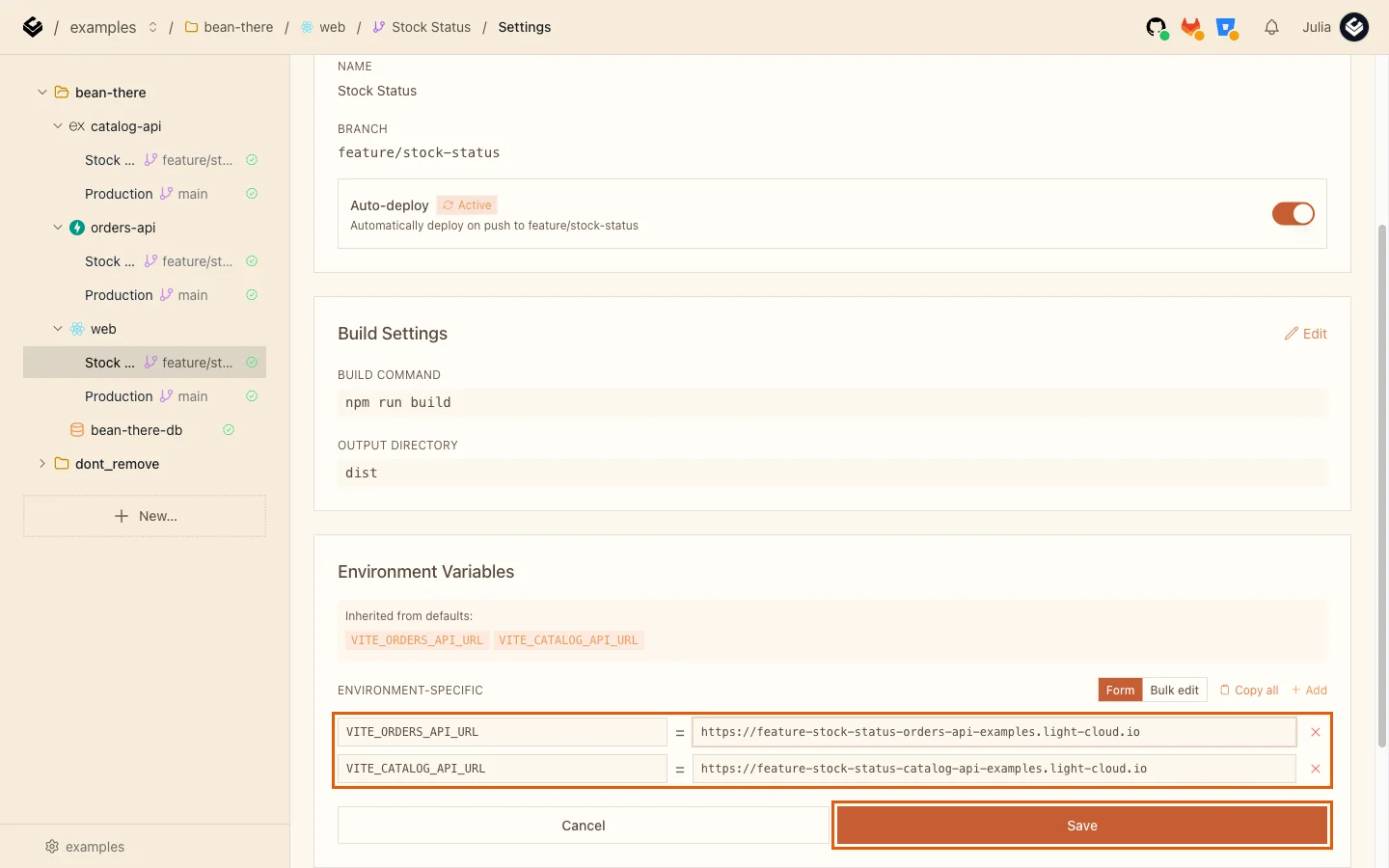
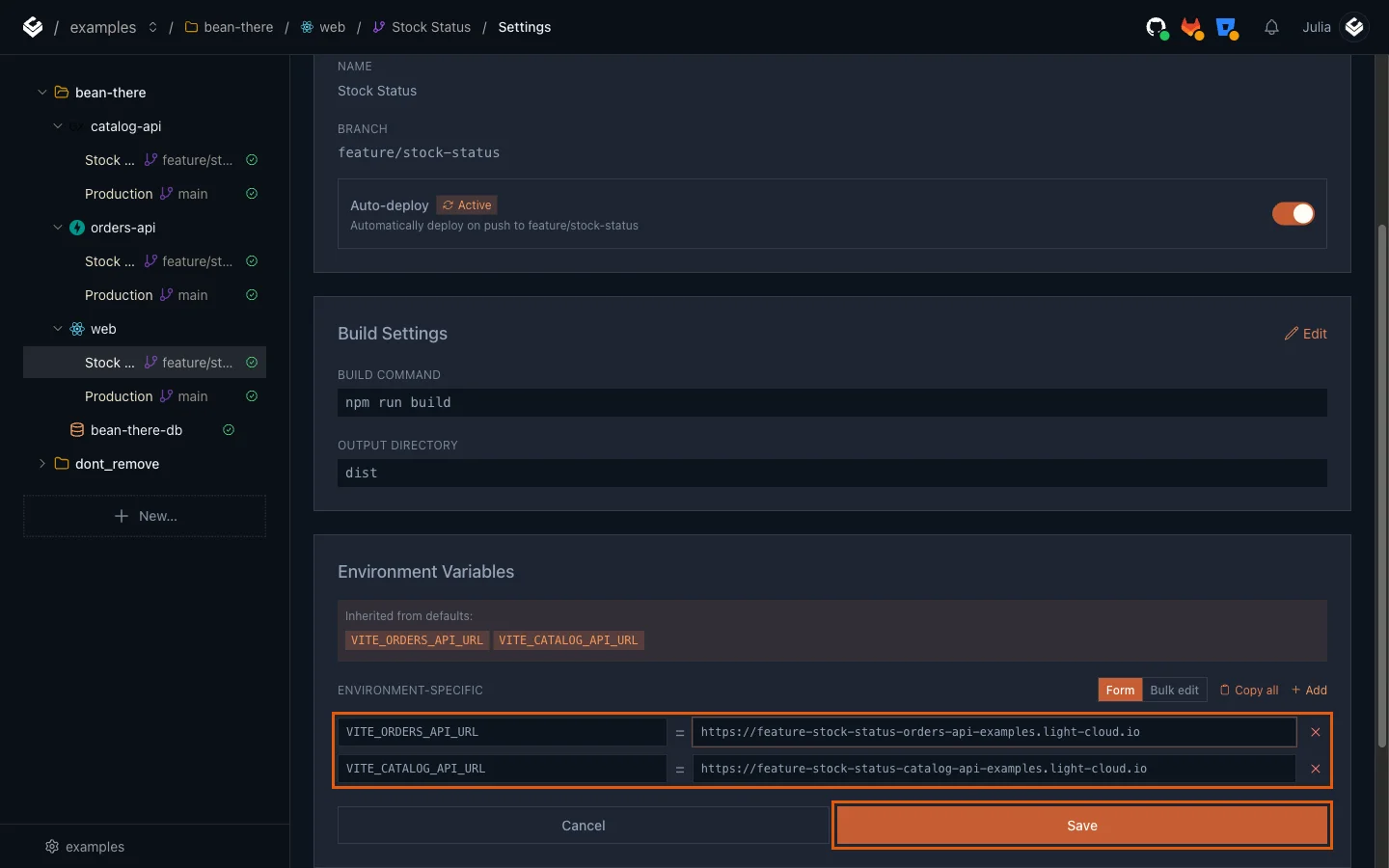
These variables belong to the branch environment only; production is not touched. About a minute after the last save, open the preview shop at https://feature-stock-status-web-yourworkspace.light-cloud.io:
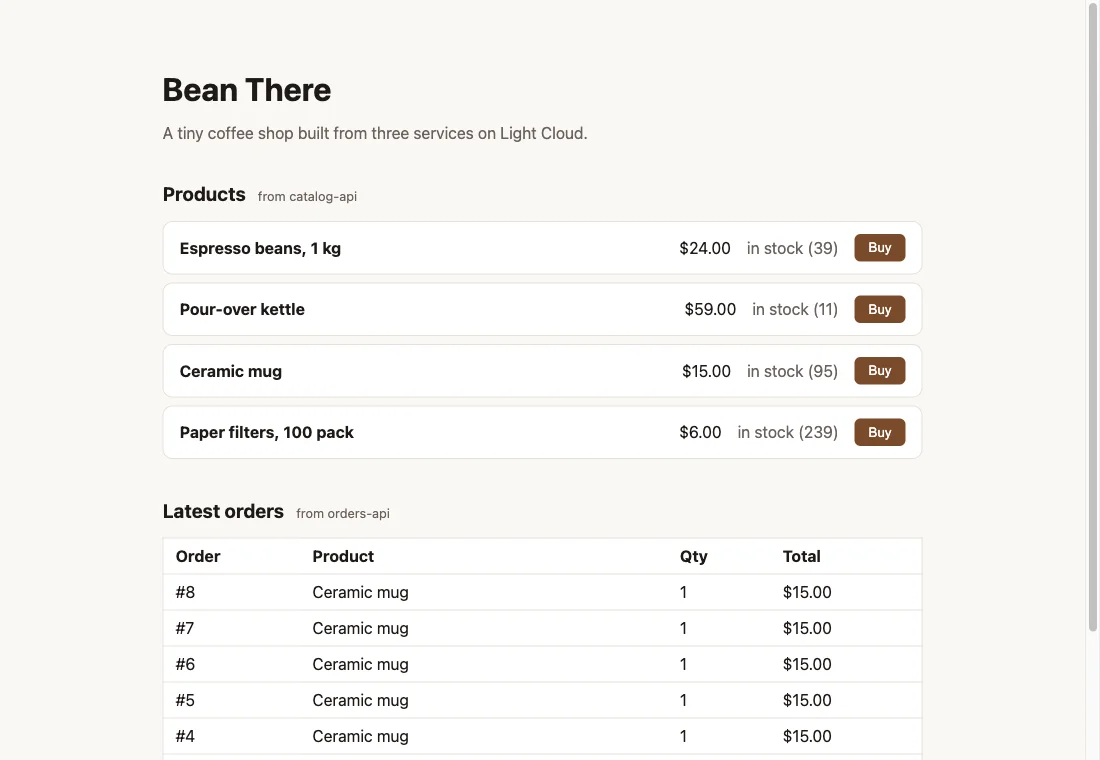
The preview shows the new status; the production shop still shows "39 in stock". Browse, but do not place orders here: the preview still shares the production database.
Step 5: Open a pull request
Open your repository on GitHub. It shows a banner for the branch you just pushed: click Compare & pull request, check that it goes from feature/stock-status into main, give it a title such as Show stock status in the shop, and click Create pull request.
Light Cloud comments on the pull request with a preview link for each app, and adds a check per app that turns green when its deployment is ready:
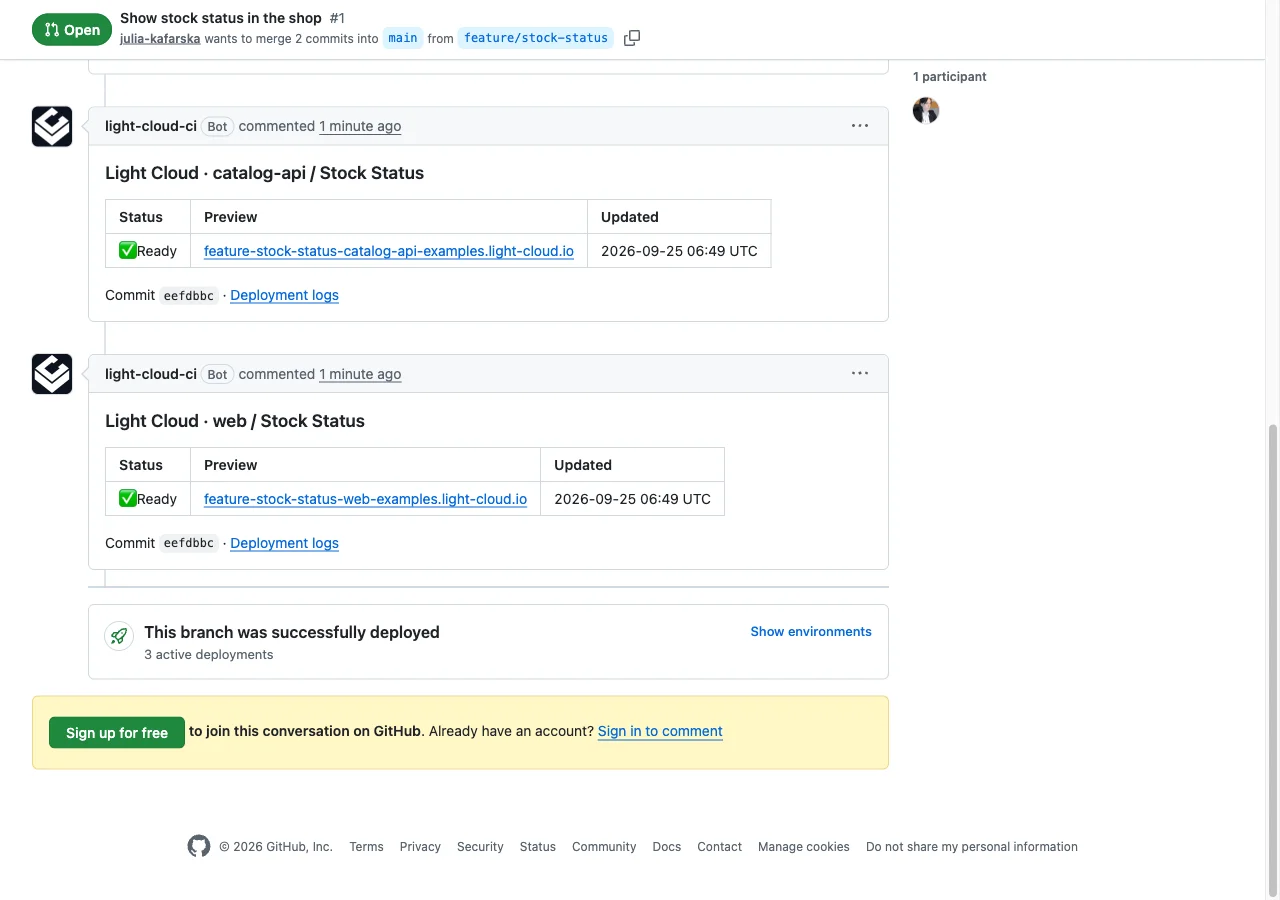
Reviewers can open the links without access to the Light Cloud console.
Step 6: Merge
Merge the branch into main and delete it, with Git:
$ git switch main
$ git pull
$ git merge feature/stock-status
$ git push
$ git push origin --delete feature/stock-statusPS> git switch main
PS> git pull
PS> git merge feature/stock-status
PS> git push
PS> git push origin --delete feature/stock-statusGitHub marks the pull request as merged as soon as its commits reach main. (The Merge pull request and Delete branch buttons on GitHub do the same.)
Two things happen:
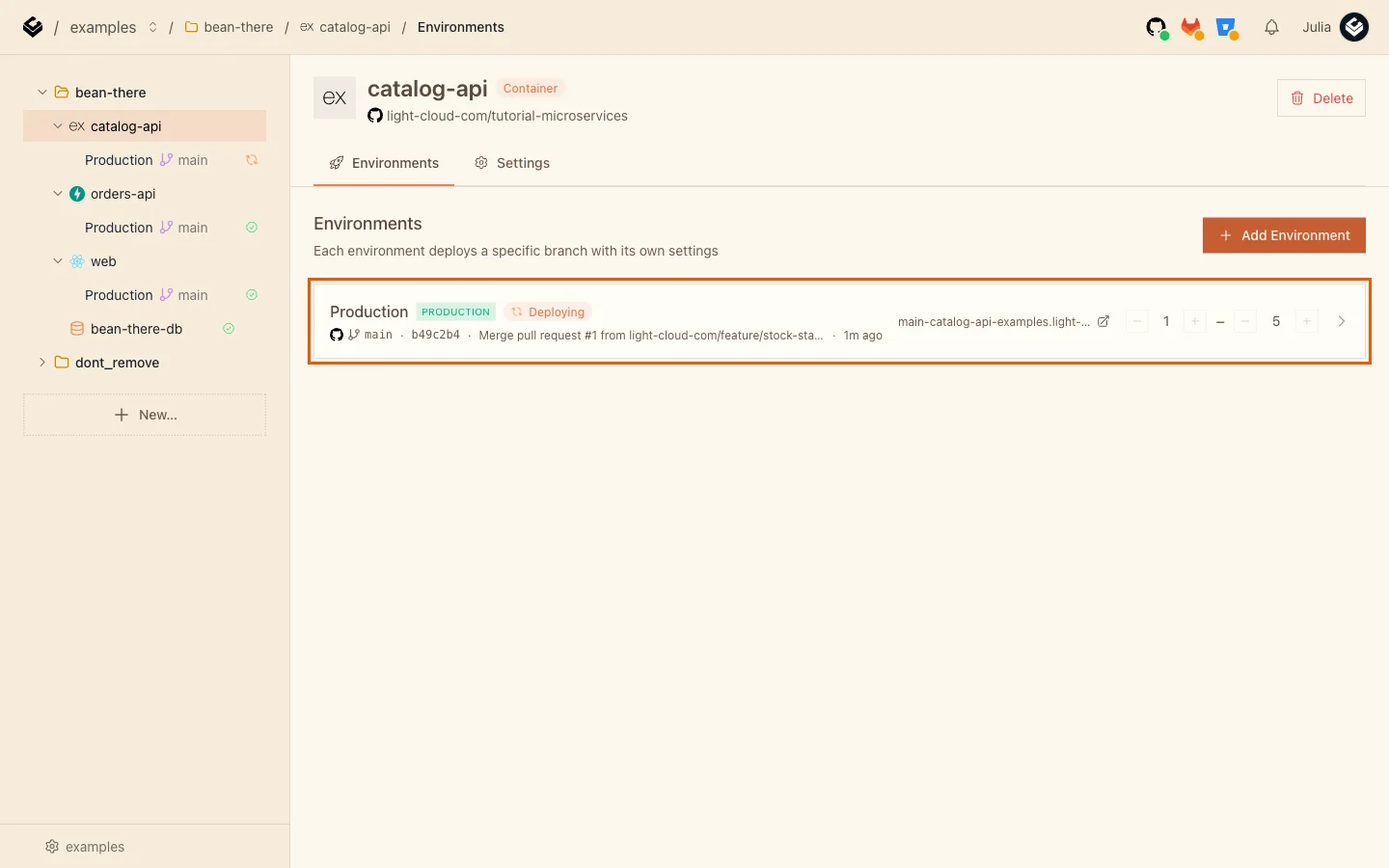
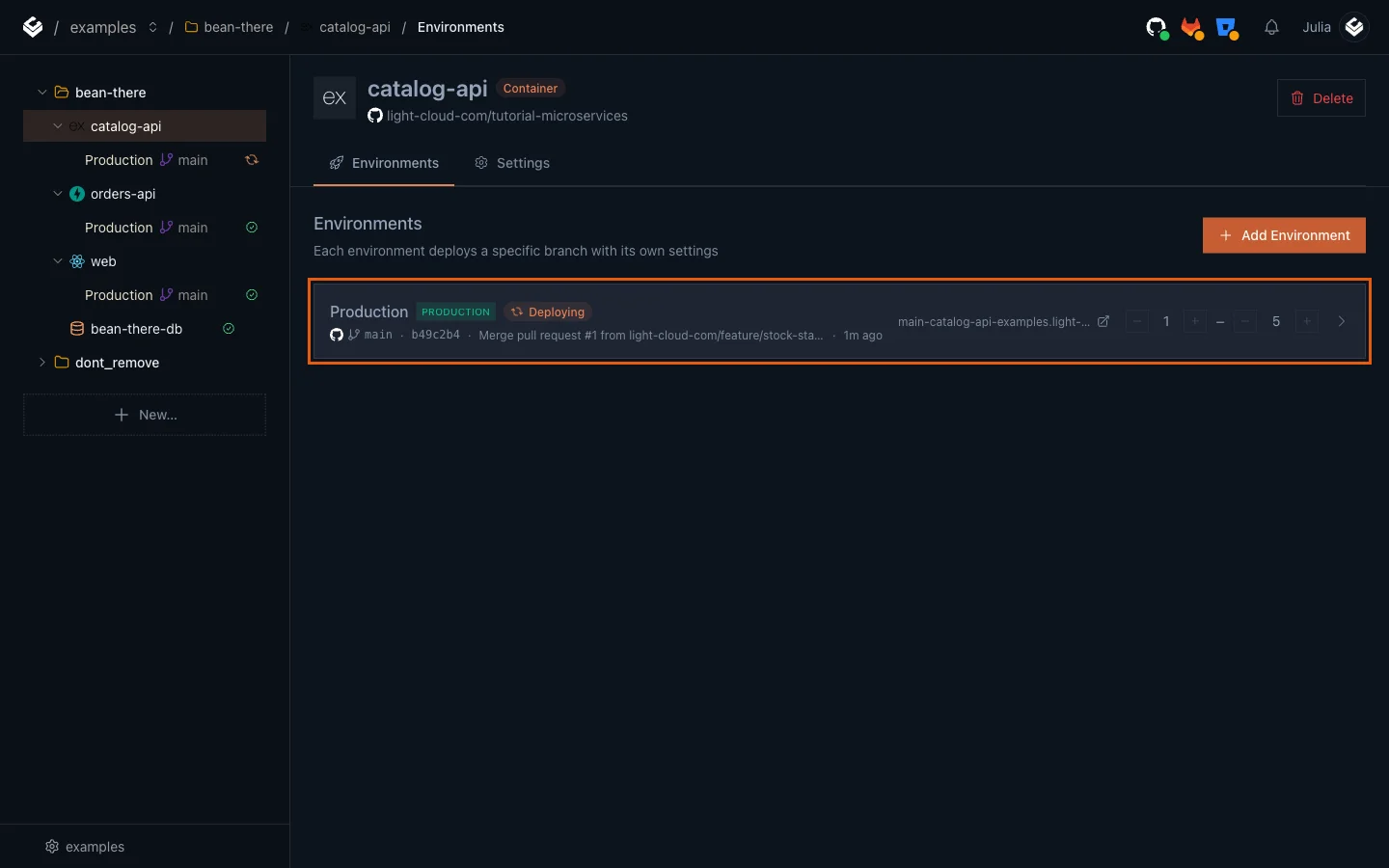
- Production redeploys only what changed. The merge touched
catalog-api/andweb/, so those two redeploy; orders-api keeps running its current version. - The previews disappear. Deleting the branch removes the three Stock Status environments.
Step 7: Roll back a bad deploy
Previews catch a lot, but not everything. To practise, push a change straight to main that builds fine and is wrong: it divides every price by 100.
// Prices in whole currency units for the new price badge.
res.json(rows.map((row) => ({ ...row, price_cents: row.price_cents / 100 })));
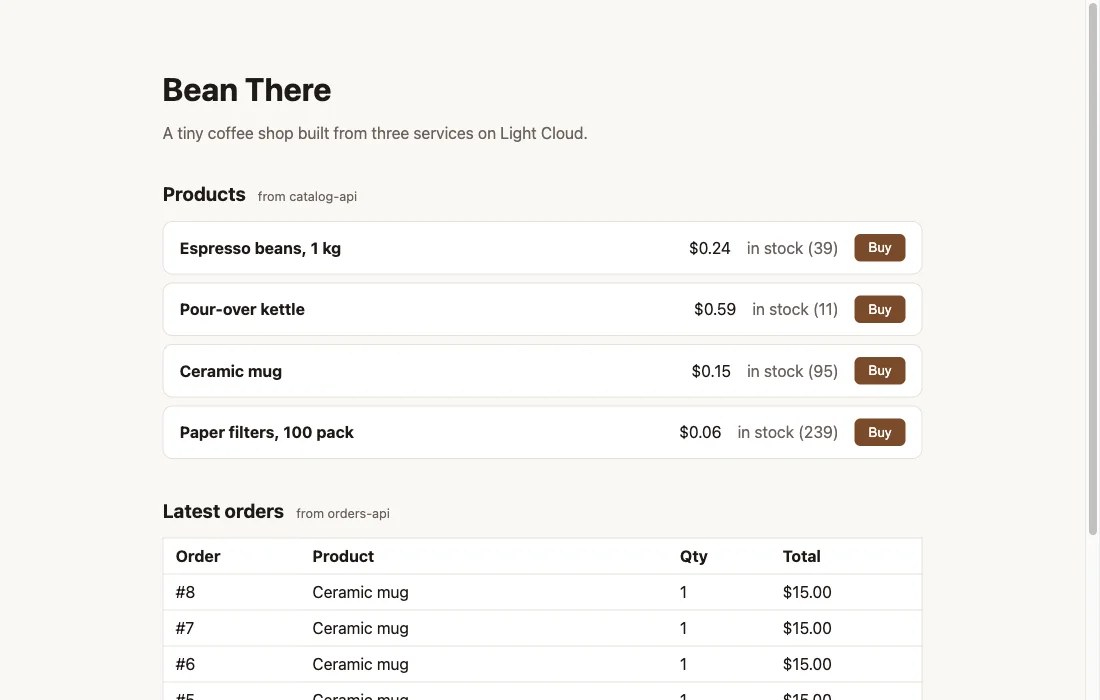
A minute after the push, the shop sells espresso beans for $0.24:
Roll back:
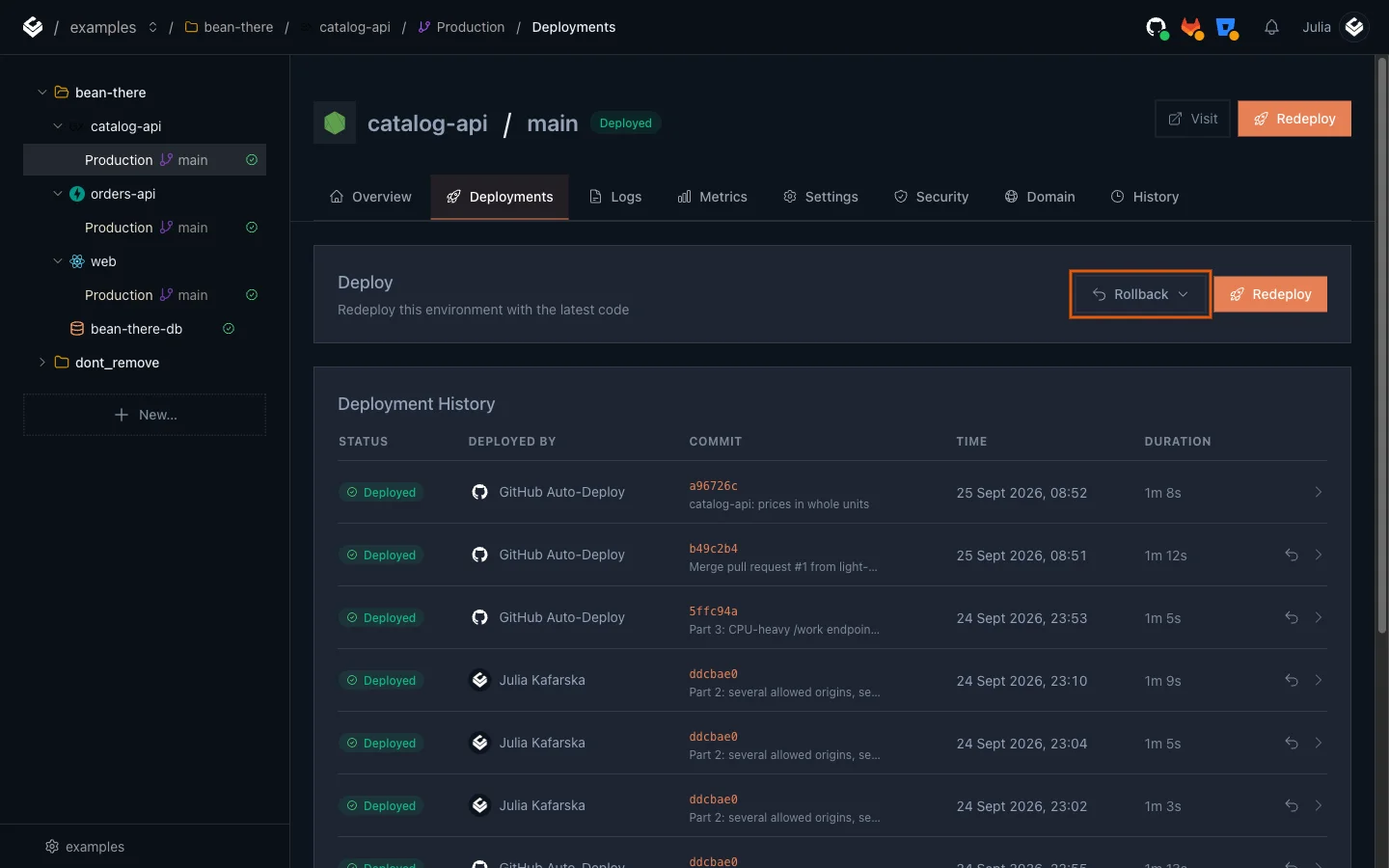
- Open catalog-api, Production, then the Deployments tab.
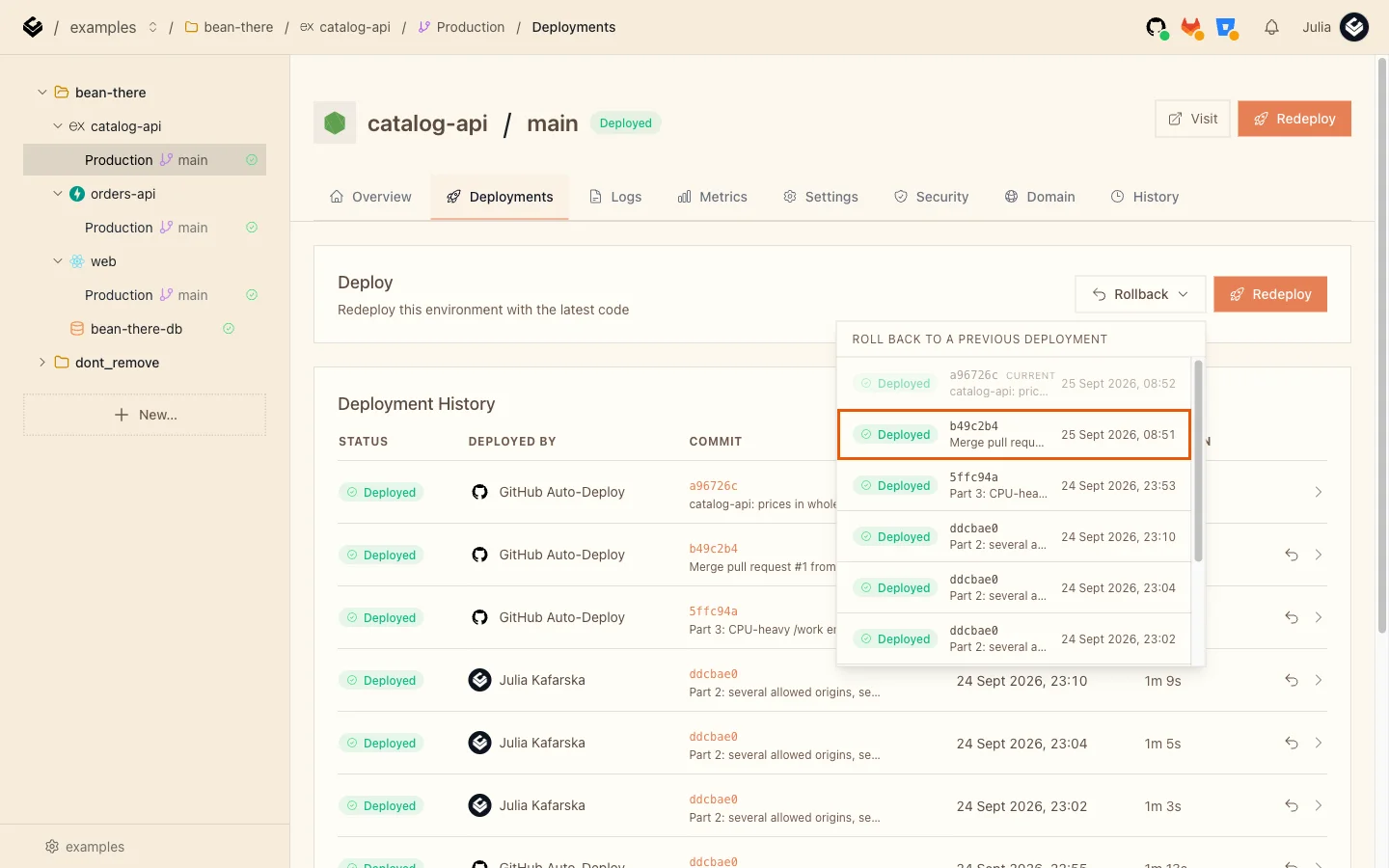
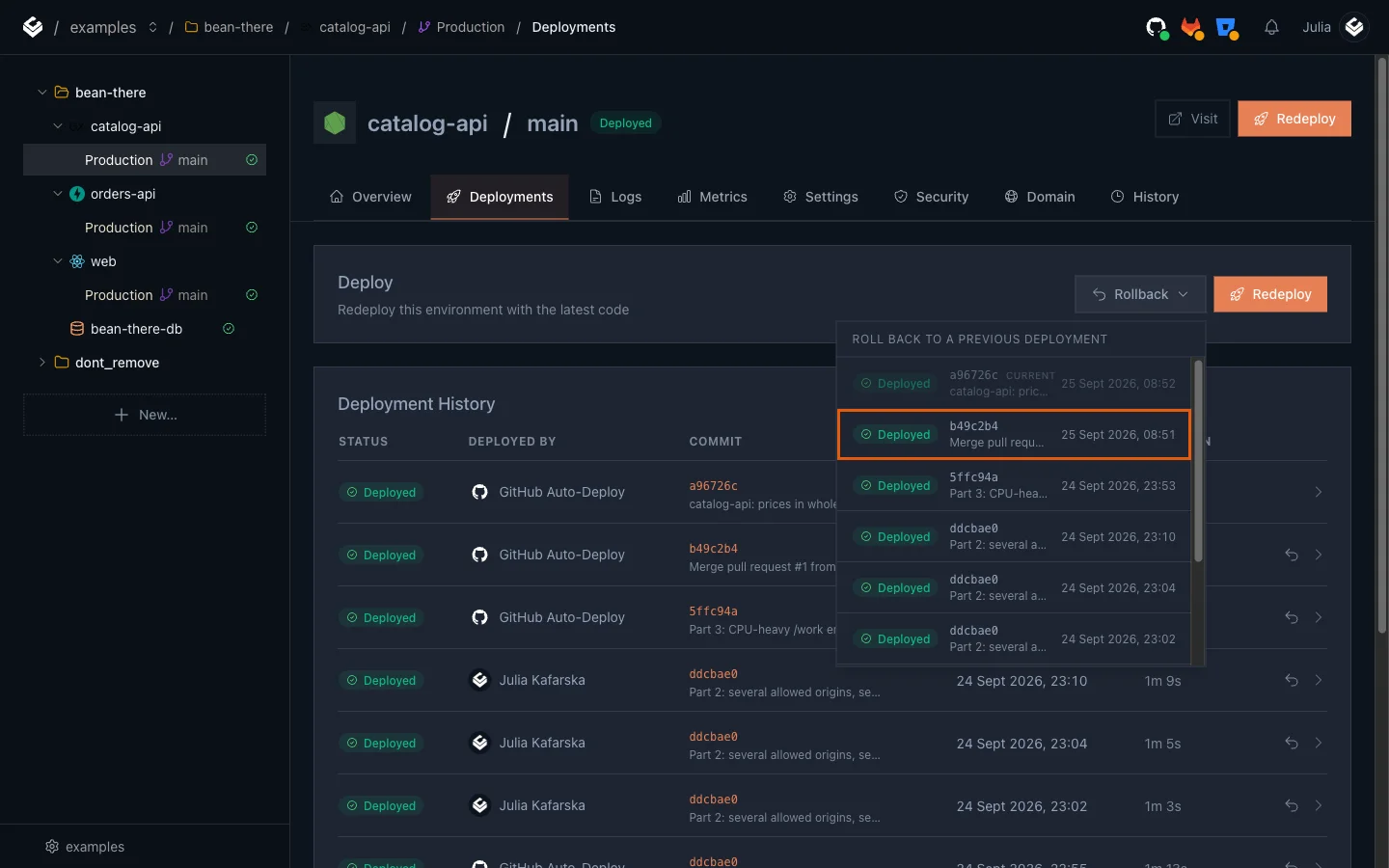
- Click Rollback.
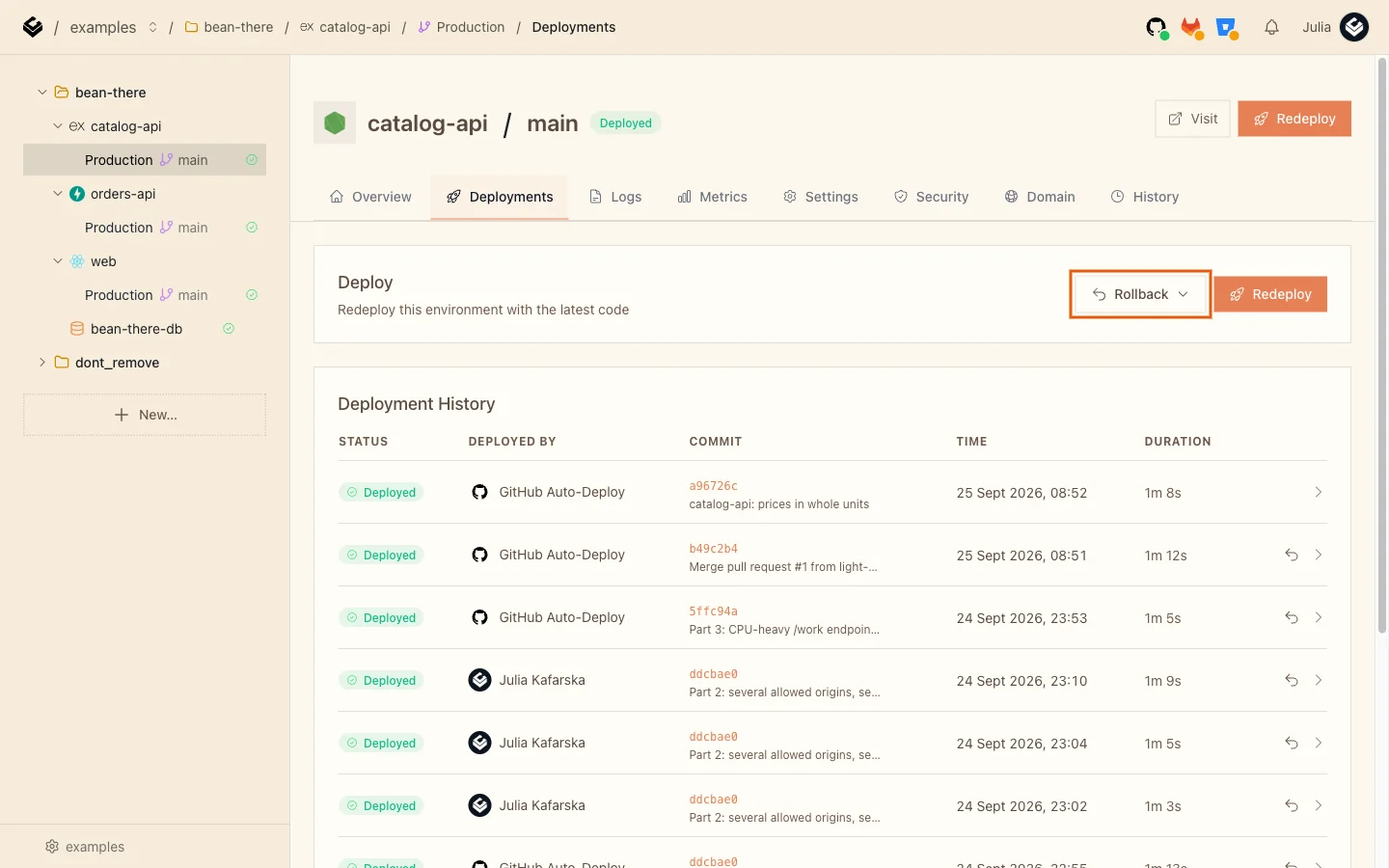
- Pick the last good deployment. The one marked CURRENT is the bad one; choose the one below it, here the merge commit
b49c2b4.
- Read the confirmation and click Roll back.
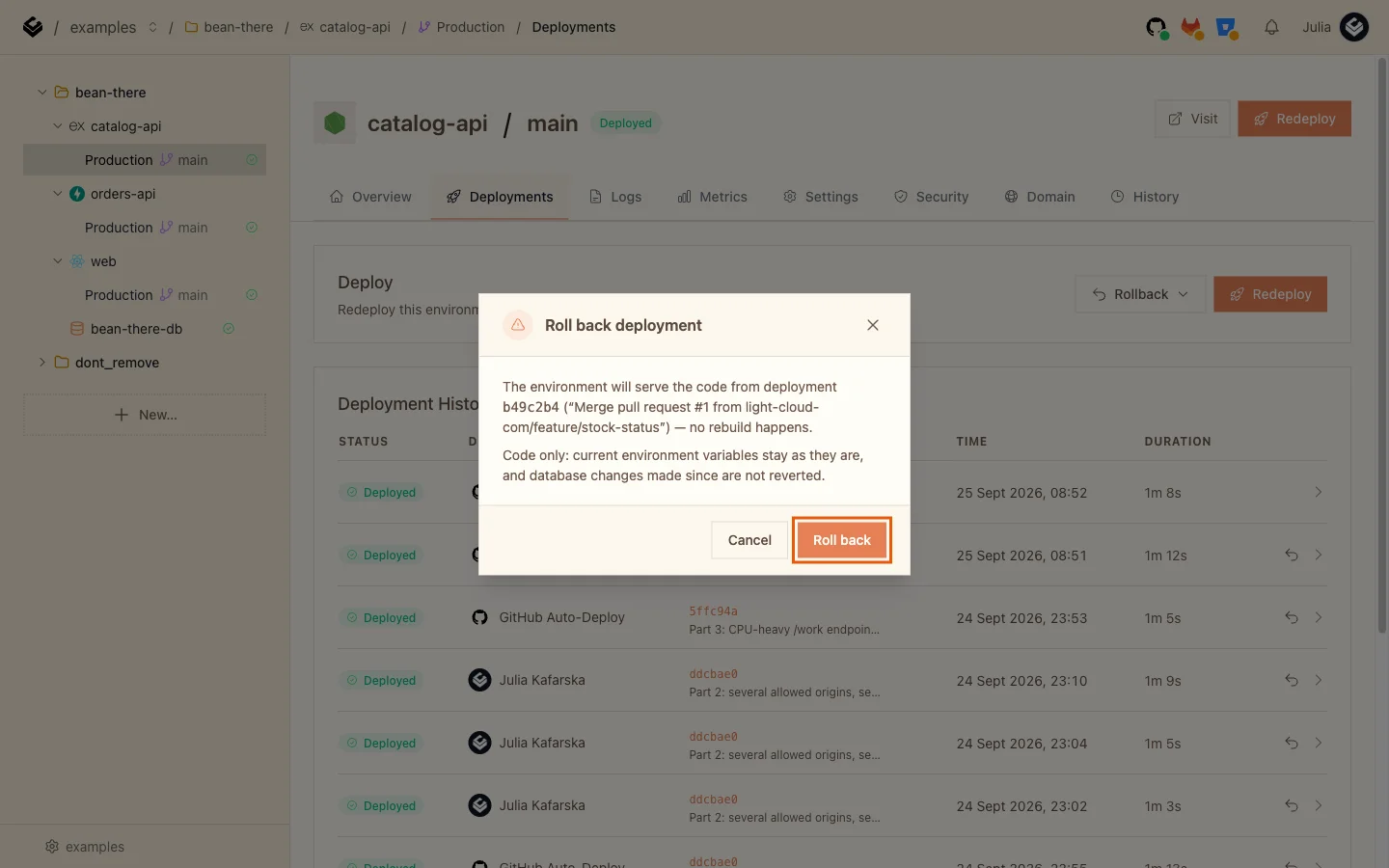
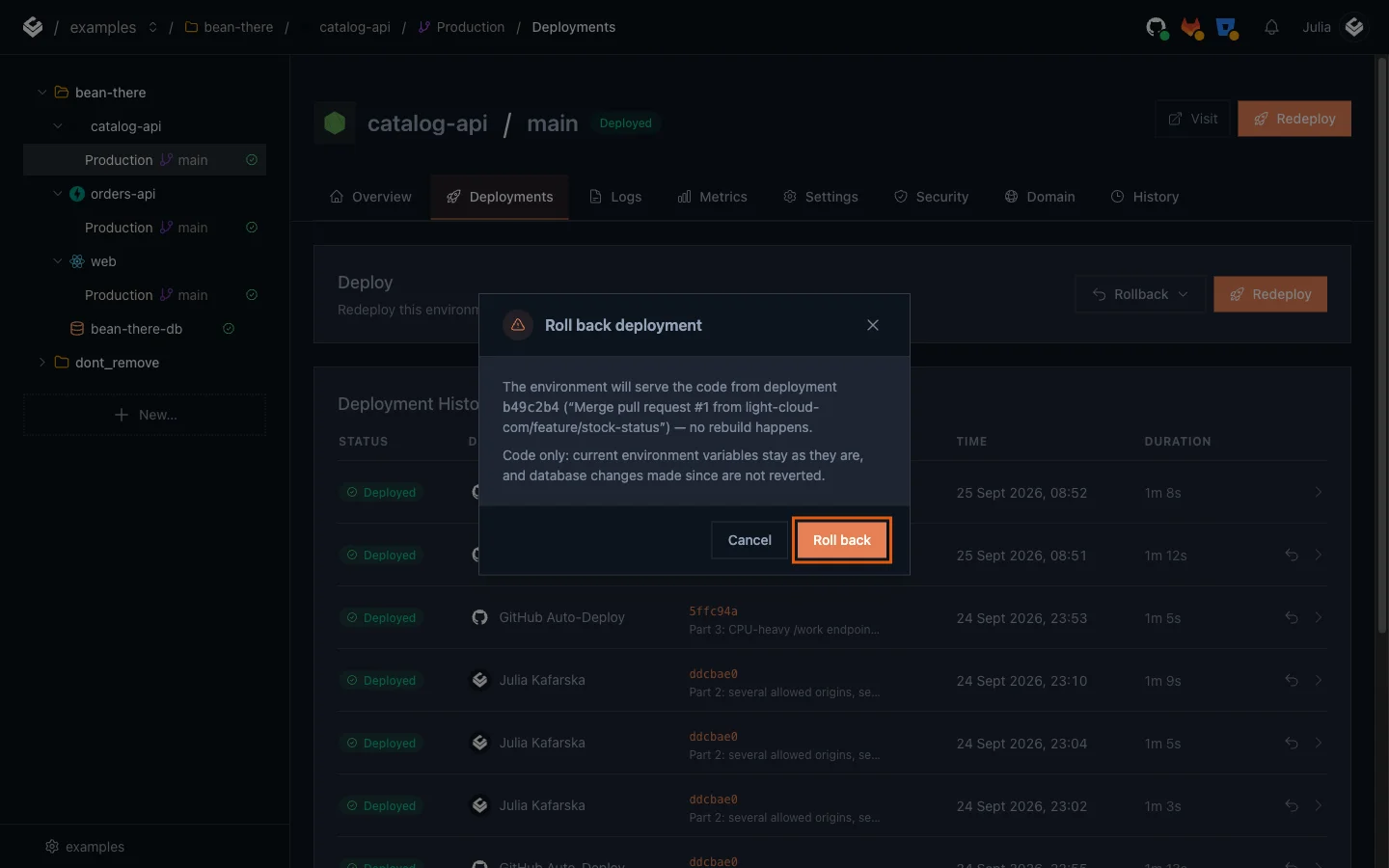
The dialog says exactly what a rollback does: the environment serves the code from the earlier deployment, with no rebuild. Current environment variables stay as they are, and database changes made since are not undone. Because nothing is built, it is fast: in my test catalog-api served the correct prices again 13 seconds after I clicked Roll back, against about 70 seconds for a normal deploy.
Step 8: Fix main
The bad commit is still on main, and the next push would deploy it again. Revert it and push:
$ git revert --no-edit HEAD
[main 35f7829] Revert "catalog-api: prices in whole units"
 1 file changed, 1 insertion(+), 2 deletions(-)
$ git pushPS> git revert --no-edit HEAD
[main 35f7829] Revert "catalog-api: prices in whole units"
1 file changed, 1 insertion(+), 2 deletions(-)
PS> git pushYour commit id will differ. The push deploys the reverted code, and main and production agree again.
Troubleshooting
The preview shop shows production data, not my change
The branch web app still uses the app's default VITE_* variables, which point at production. Set them on the branch environment (Step 4); saving rebuilds the preview with the new values.
The preview shop shows a CORS error
The branch APIs only allow the origins in their own WEB_ORIGIN. Add the preview web address to WEB_ORIGIN on the branch catalog-api and orders-api.