Put a Password on a Staging Site Before the Client Sees It
Push a staging branch, get its own address, lock it with one password. Production stays public, search engines stay out.



On this pageShowHide
To password-protect a staging site on Light Cloud, push a staging branch so it gets its own environment and address, open that environment's Security tab, click Set password and save. From the next request on, visitors see a password page instead of the site, search engines are told not to index it, and production stays public. There is nothing to add to your code.
In my run the password was active the moment I saved it.
What you will build
A staging copy of a website, on its own address, behind a password page like this one:
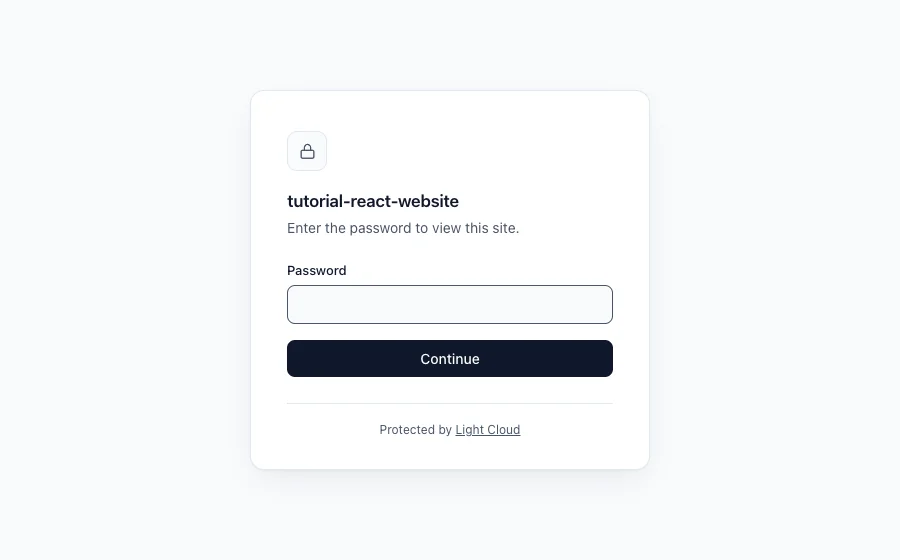
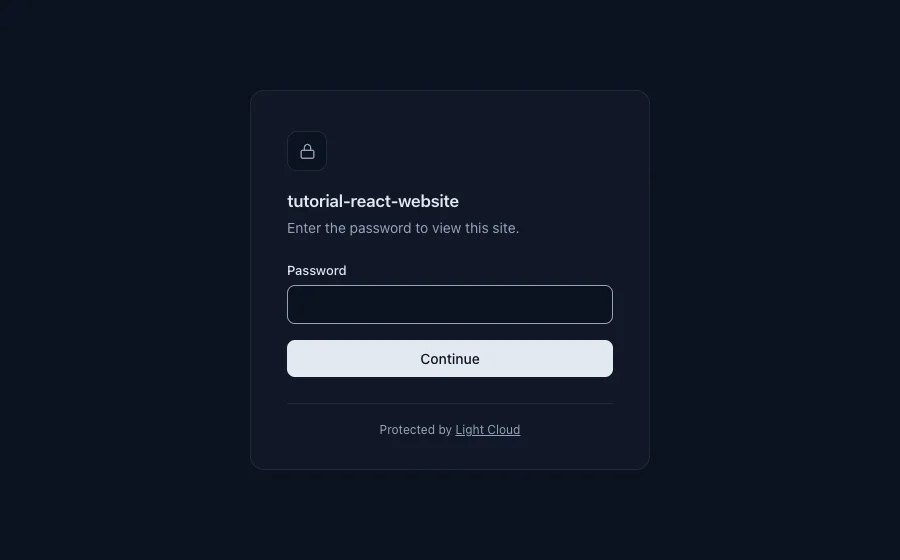
Try it: staging-tutorial-react-website-examples.light-cloud.io is the one from this guide. The production site, main-tutorial-react-website-examples.light-cloud.io, is still public.
Before you start
- A site already deployed on Light Cloud from GitHub. If you do not have one, deploy a React app in minutes first; this guide continues from it.
- Git.
- For the checks at the end, curl. On Windows, use PowerShell 7 and
curl.exe, which ships with Windows 10 and 11.
Step 1: Push a staging branch
Create a branch, make the change your client should review, and push it. Here the change is a new headline in src/App.jsx:
<h1>Staging: new homepage for review</h1>
$ git checkout -b staging
$ git commit -am "Staging: new homepage headline for client review"
$ git push -u origin stagingPS> git checkout -b staging
PS> git commit -am "Staging: new homepage headline for client review"
PS> git push -u origin stagingDeploy every branch is on by default, so Light Cloud builds the branch by itself. After about a minute (64 seconds in my run) the app's Environments page lists a Staging environment next to Production, with its own address:
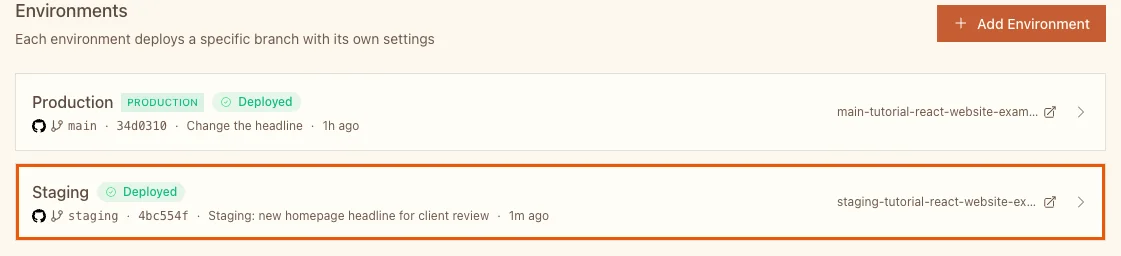
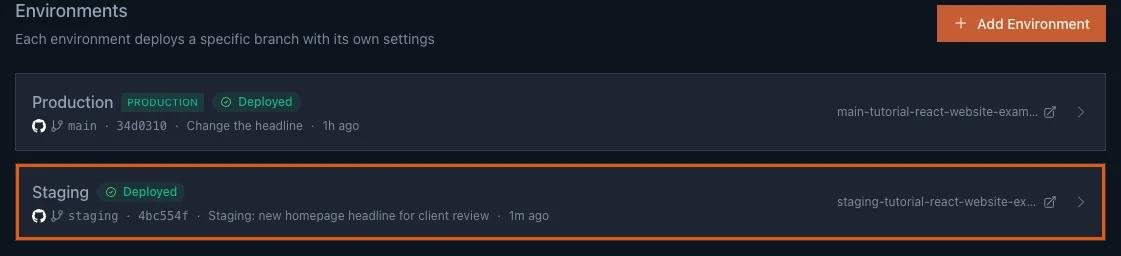
The address follows the pattern https://<branch>-<app>-<workspace>.light-cloud.io, here staging-tutorial-react-website-yourworkspace.light-cloud.io.
Step 2: Set the password
- Click the Staging environment, then the Security tab.
- Under Password Protection, click Set password.
- Enter the password in Password and again in Confirm password. It needs at least 6 characters; a longer random one is better, because you will send it to people anyway.
- Click Save password.
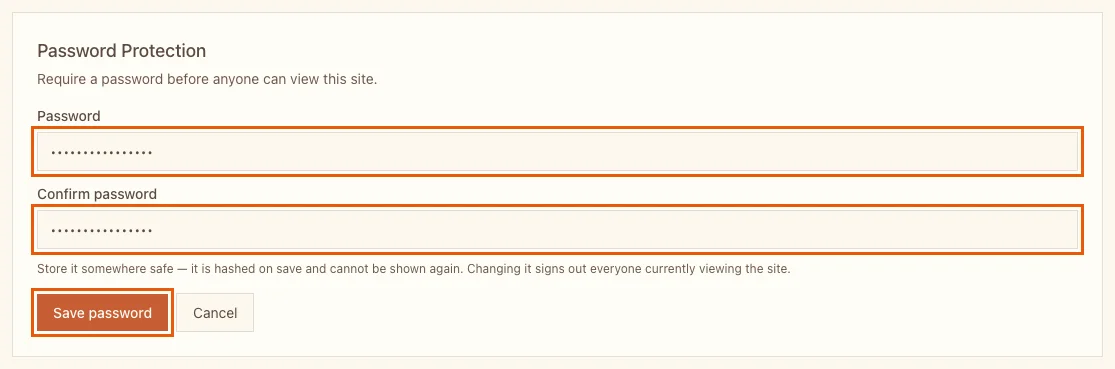
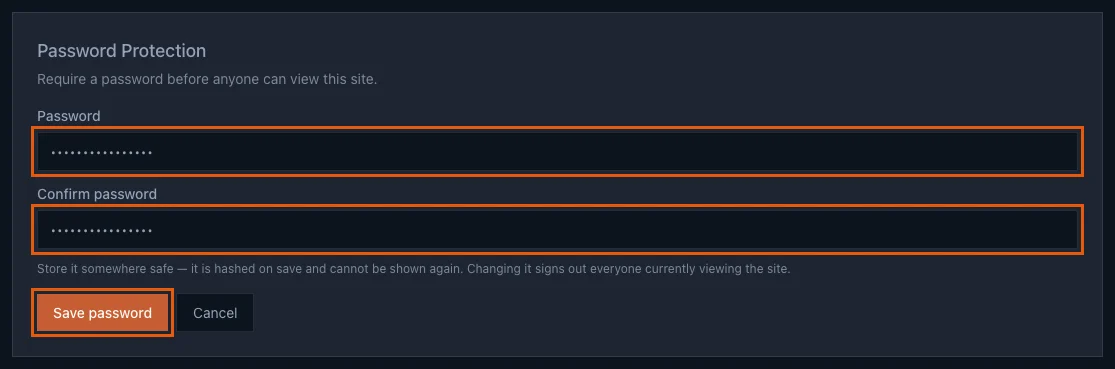
Store the password somewhere safe before you save: Light Cloud keeps only a hash of it and cannot show it again. The card now says the site is protected:


Protection applies at once, with no redeploy. It belongs to this environment only: Production is untouched.
Step 3: Check it from the outside
Open the staging address in a private browser window. Instead of the site you get the password page shown at the top. A wrong password shows Incorrect password.; the right one opens the site:
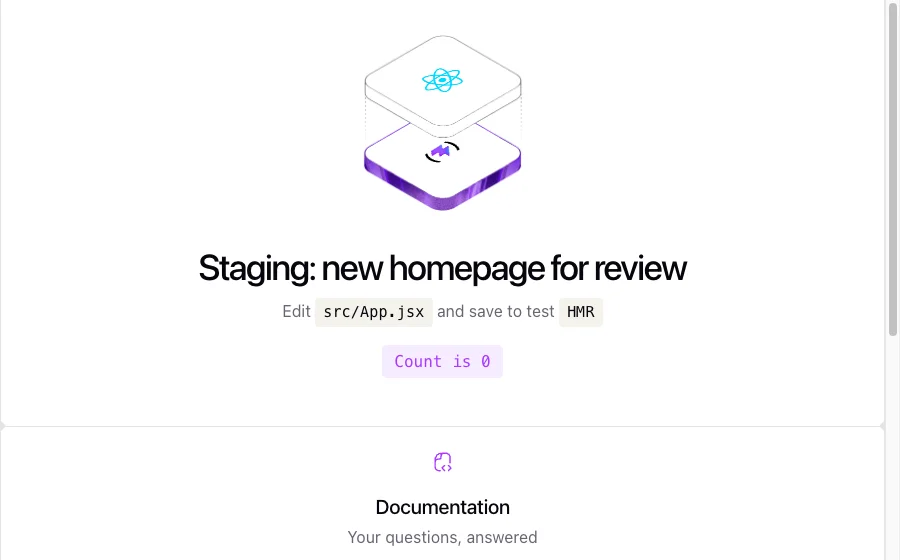
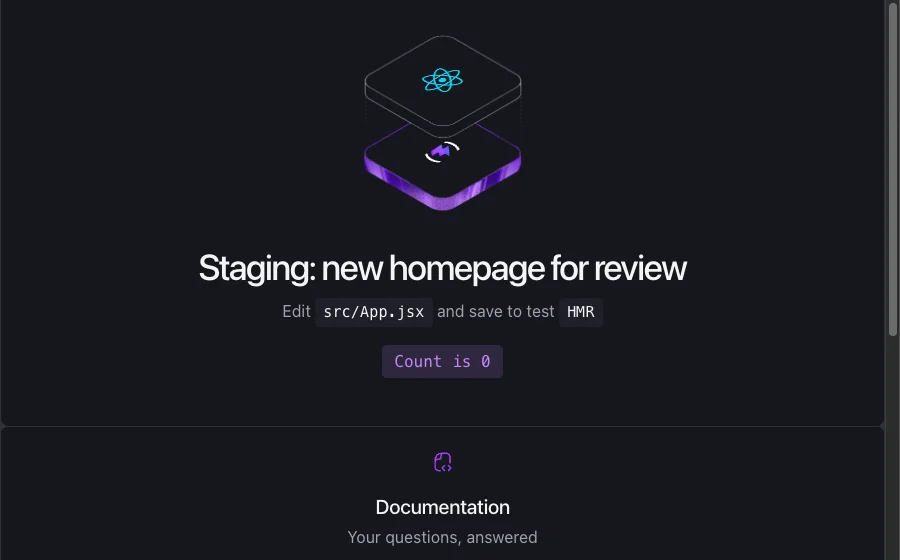
From the terminal you can see what search engines and link previews get. curl -I shows only the response headers:
$ curl -I https://staging-tutorial-react-website-yourworkspace.light-cloud.io/
HTTP/2 401
date: Fri, 25 Sep 2026 19:03:02 GMT
content-type: text/html; charset=utf-8
cache-control: no-store, must-revalidate
x-robots-tag: noindex, nofollowPS> curl.exe -I https://staging-tutorial-react-website-yourworkspace.light-cloud.io/
HTTP/2 401
date: Fri, 25 Sep 2026 19:03:02 GMT
content-type: text/html; charset=utf-8
cache-control: no-store, must-revalidate
x-robots-tag: noindex, nofollowI cut the output after the header that matters; a few more lines follow. 401 means "sign in first", and noindex, nofollow tells search engines not to list the page. Production still answers 200 for everyone.
How it works
The password is checked at the edge, before a request reaches your site, so it protects every page and every file, including images and JavaScript. Your code does not change and cannot leak the page by mistake.
- After the right password, the browser gets a secure, HTTP-only cookie that is valid for 12 hours. Visitors are not asked again on every page.
- Protected pages are never stored in a shared cache, so one visitor's access cannot leak to the next.
- After 8 wrong passwords from one address within 15 minutes, further attempts are refused for a while.
- Change sets a new password and signs out everyone who is viewing the site. Use it when a review is over or a password was shared too widely.
- Remove makes the environment public again.
- When the review is done and you delete the
stagingbranch, Auto-cleanup when branch is deleted (in the app's Settings, on by default) removes the staging environment too.
More tutorials


FastAPI in Production: From main.py to a Public URL
Deploy a FastAPI app to Light Cloud without a Dockerfile: requirements.txt and main.py are enough, uvicorn is started on the right port, and the Swagger docs at /docs are live in about 90 seconds.
 Julia
Julia

Put a Node.js Express API Online: Port, Environment Variables and Logs
Deploy an Express 5 API on Light Cloud without a Dockerfile: listen on PORT, read settings from environment variables, write JSON logs with a severity, and find every request in the Logs tab.
Julia

Deploy a SvelteKit Site as Static Files: adapter-static and Prerendering
Deploy a SvelteKit site with adapter-static to Light Cloud: fix the Encountered dynamic routes error with export const prerender = true, and get real HTML pages served from the edge, deep links included.
Julia