Schema Migrations on Every Deploy: Run Them When Your App Starts
Change a Light Cloud PostgreSQL schema with a migration file that runs automatically on every deploy, and what a rollback does and does not undo.



On this pageShowHide
To run schema migrations on every deploy of a Node.js app on Light Cloud, keep them as files in the repository and make npm start apply them before it starts the server: "start": "npm run migrate && node server.js". Each deploy then brings the database up to date before the new version takes traffic.
This is part 7 of the database series. It adds a column to the reviews table of bookshop-db with a migration that runs on deploy, using the bookshop-api app from part 6.
What you will do
- Add node-pg-migrate to the app.
- Write a migration that adds
created_attoreviews. - Make the start script run it, push, and watch it run in the logs.
Before you start
- The
bookshop-apiapp from part 6, deployed from theappfolder of the repository, withDATABASE_URLset. - Node.js 20 or later and Git on your computer.
- A Light Cloud account on the Lite plan or higher.
Why run migrations on start
Light Cloud builds your app and then starts it. The start is the first moment where the new code and the database meet, and the only step that has DATABASE_URL. Running migrations there means:
- the schema changes in the same deploy as the code that needs it,
- nobody has to remember to run anything by hand,
- a failed migration stops the new version from starting, while the old one keeps serving. I tested that; see Troubleshooting.
Step 1: Add node-pg-migrate
In the app folder:
$ npm install node-pg-migratePS> npm install node-pg-migrateI got version 9.0.0. It reads DATABASE_URL by itself, including the ?sslmode=require&uselibpqcompat=true ending.
Step 2: Write the migration
Create a migration file in plain SQL:
$ npx node-pg-migrate create add-review-dates -j sql
Created migration -- /Users/you/tutorial-database-basics/app/migrations/1790352975701_add-review-dates.sqlPS> npx node-pg-migrate create add-review-dates -j sqlOn Windows it prints the same line with a Windows path. The number is a timestamp, so yours differs; it keeps migrations in order. Fill in the file:
-- Up Migration
ALTER TABLE reviews ADD COLUMN created_at TIMESTAMPTZ NOT NULL DEFAULT now();

-- Down Migration
ALTER TABLE reviews DROP COLUMN created_at;
Up is what the deploy runs. Down undoes it, for when you run npx node-pg-migrate down by hand. The DEFAULT now() fills in existing rows, so NOT NULL works on a table that already has data.
Step 3: Run it on start
In package.json, add a migrate script and make start run it first:
{
  "scripts": {
    "migrate": "node-pg-migrate up",
    "start": "npm run migrate && node server.js"
  }
}
Light Cloud starts Node.js apps with npm start, so this is all it needs. The && means the server only starts if the migrations succeeded.
The repository's server.js also has a new route, GET /reviews, that returns created_at.
Step 4: Push and watch
Commit the migration, package.json, package-lock.json and server.js, and push. Light Cloud deploys the push; mine took 1 minute 23 seconds. Open Production, Logs, set version to every version, and search for migrat:
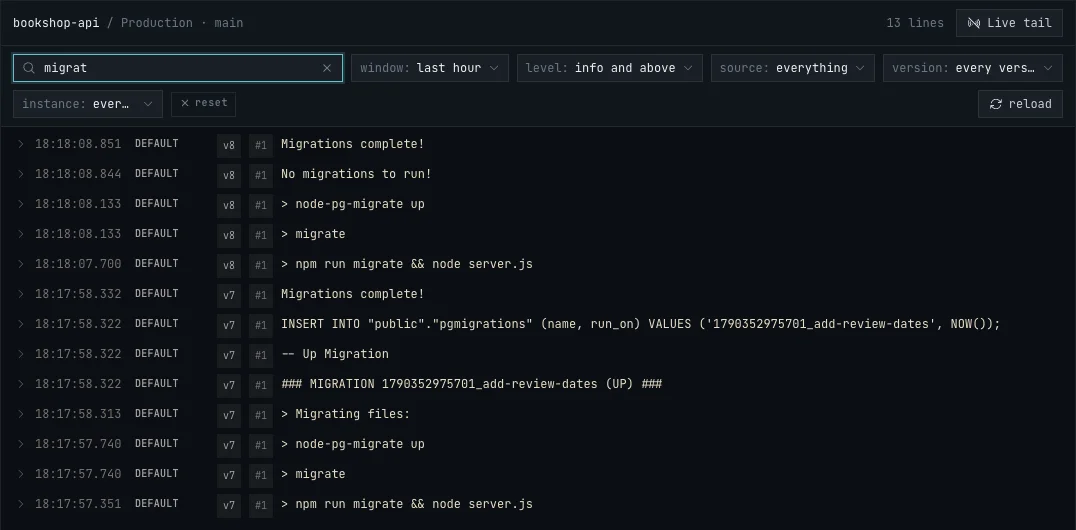
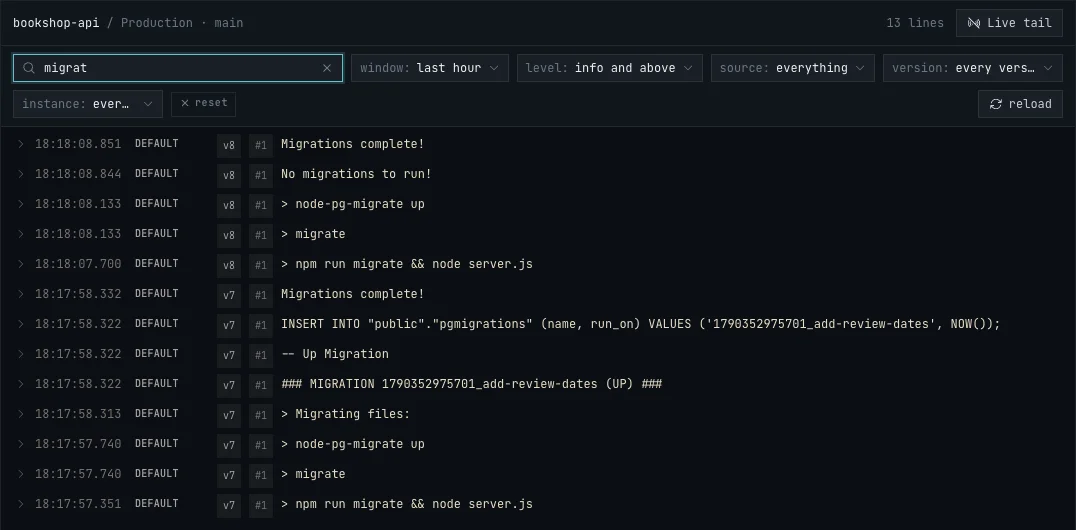
Read it from the bottom up. The first instance of the new version (v7) ran npm run migrate, applied add-review-dates and recorded it in the pgmigrations table. A second start (v8) found No migrations to run! and went straight to the server. That is what every later start and every new instance does, so it is safe to run on each one. Checking for migrations added about a second to start-up.
Check the result:
$ curl https://main-bookshop-api-yourworkspace.light-cloud.io/reviews
[{"id":1,"title":"Mort","rating":5,"body":"Funny, kind and about Death.","created_at":"2026-09-25T16:17:58.315Z"}]PS> curl.exe https://main-bookshop-api-yourworkspace.light-cloud.io/reviews
[{"id":1,"title":"Mort","rating":5,"body":"Funny, kind and about Death.","created_at":"2026-09-25T16:17:58.315Z"}]The existing review got the time the migration ran.
Rollbacks do not touch the database
The Deployments tab can roll the app back to an earlier deployment. That brings back the old code and settings, but not the old schema: the created_at column stays. So write each migration so that the version before it still works:
- Add, do not rename. Adding a column is safe; old code ignores it. Renaming breaks old code that uses the old name.
- Remove in two deploys. First deploy code that no longer uses a column, then drop it in a later migration.
- Give new required columns a default, like
DEFAULT now()above, so old code that inserts rows without them keeps working.
To undo a migration for real, run npx node-pg-migrate down from your computer with DATABASE_URL set, and take a backup first (part 4).
Django, Alembic and Prisma
The same idea works in other stacks: run the migrate command right before the server starts.
- Prisma:
"start": "prisma migrate deploy && node server.js". - Django:
python manage.py migrate. Alembic (FastAPI, Flask):alembic upgrade head. Light Cloud starts Python apps with its own command, so to run these on start, deploy with a Dockerfile whoseCMDruns the migration and then the server. Or run them from your computer before you push, as in the Django guide.
I tested node-pg-migrate here, not these commands.
Troubleshooting
The deployment says Failed
A migration failed, so the server did not start. I tried it with a migration that alters a table that does not exist: the deployment showed Failed, the Logs tab showed error: relation "no_such_table" does not exist, and the old deployment kept serving. My API answered all 141 requests during that deploy. Fix or remove the migration and push again.
column "created_at" of relation "reviews" already exists
The change was already made by hand. Remove it from the database, or mark the migration as done with npx node-pg-migrate up --fake from your computer.